Hello, Travellers.
We all know that gaming experience is much more immersive when playing with a controller, and to explore Teyvat is almost a must for a truly appreciative experience. The best option to play PC games is of course a Steam Controller, with thousands of button customizations. (I used to play Tree of Savior with it, with ALL shortcuts built into the controller. It's awesome!)
In this guide I'll talk about how to add Genshin Impact on Steam and configure the controller,
and in the end, I'll talk about improvements that must be made in the game by miHoYo to further improve this experience. To play Genshin Impact with a Steam Controller, we will need prepare our Steam. Please follow this STEPS bellow:
*A good reason to use Steam is also that Genshin Impact DOESN'T currently save your non-Photo Mode print screens like pressing "PrtSc" on the keyboard, and that's pretty sad. On Steam use F12 (or selected key) to save any printscreens as you want on the steam game folder.
Steam & Steam Controller Guide
1. Add 'Genshin Impact' on Steam
Add Genshin Impact a Non-Steam Game on your library.

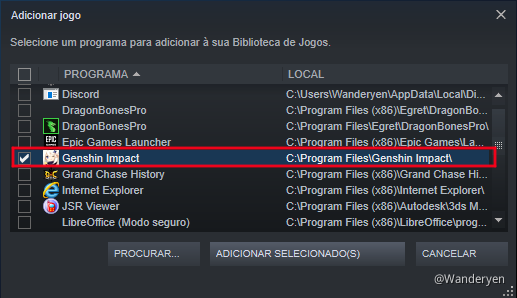
2. Change Game Properties on Steam
Lets jump the launcher here. Open the launcher and START the game, then in the windows bottom bar check the 'Genshin Impact' properties:
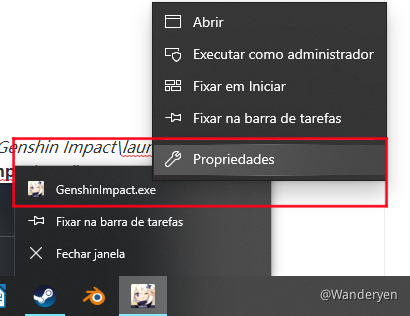
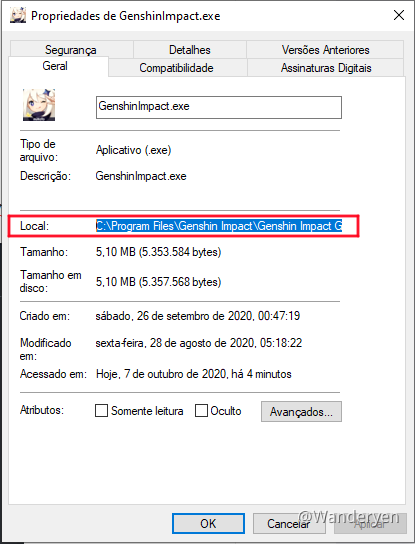
Open the Genshin Impact game properties on steam library and change the destination directory from "C:\Program Files\Genshin Impact\launcher.exe" to the local in the properties, in my case "C:\Program Files\Genshin Impact\Genshin Impact Game\GenshinImpact.exe"
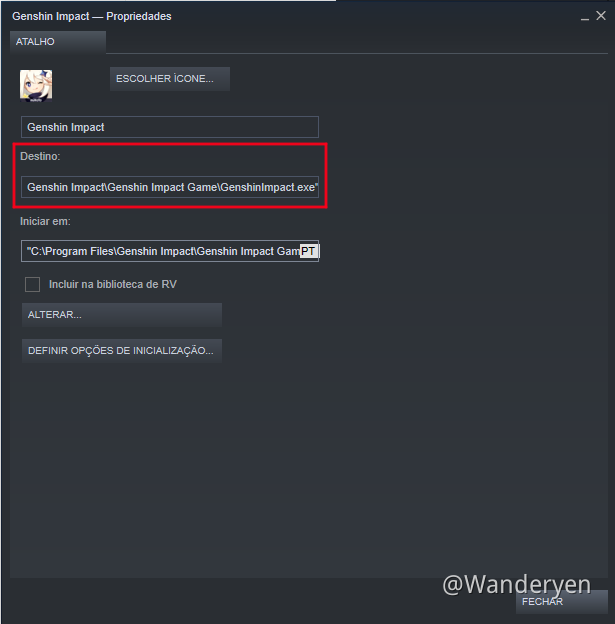
For the 'start at' right bellow, change from "C:\Program Files\Genshin Impact\" to "C:\Program Files\Genshin Impact\Genshin Impact Game\" (just take off "GenshinImpact.exe" from the destination directory)
3. Change Steam Properties
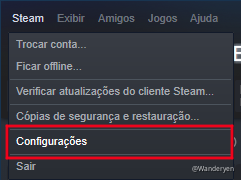
Now, lets configure our steam properties. Open the Configurations option on Steam top bar.
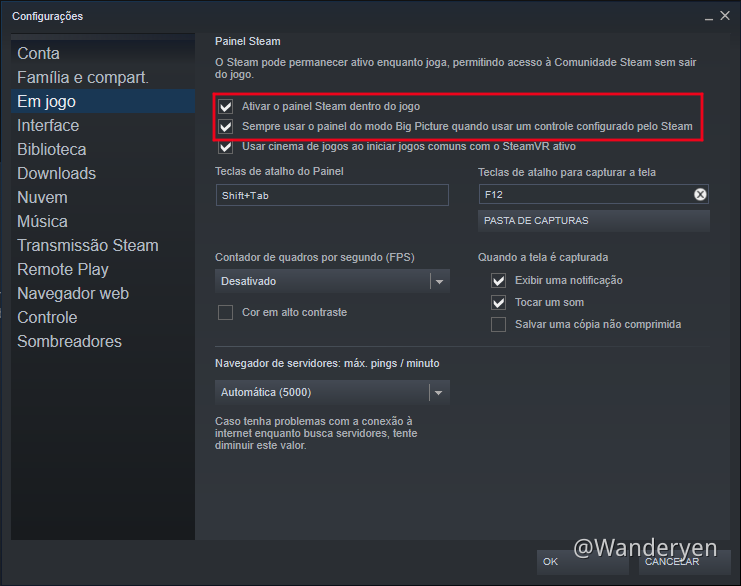
Make sure the boxes below in "In Game" are checked:
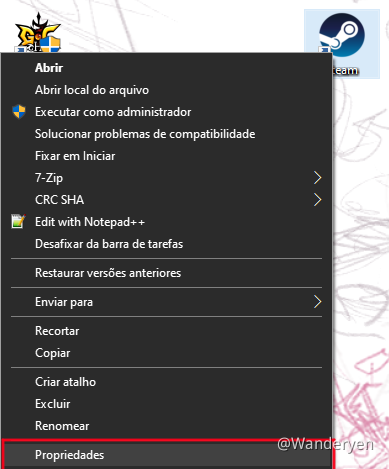
On the desktop steam shortcut, select properties:
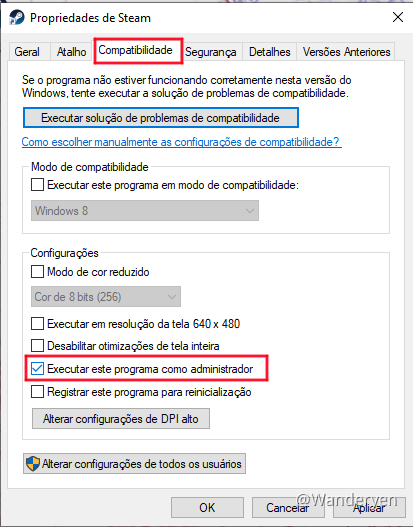
Then, in "Compatibility", mark "Execute this program as administrator" and apply.
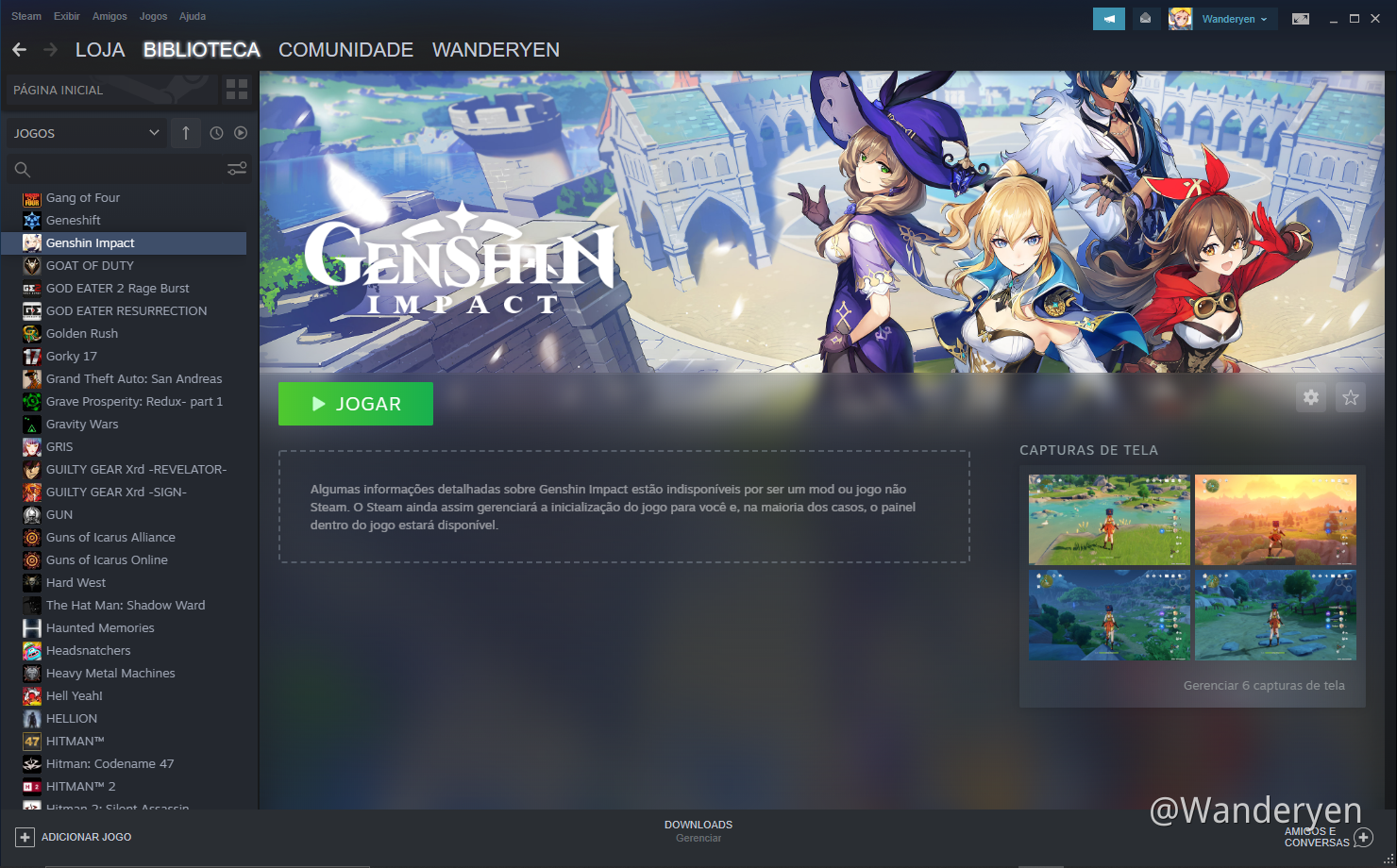
Now you are able to launch the game directly from your Steam Library, remember to turn on your controller BEFORE initializing the game on the library. If you want, put some custom covers! There is two type of library covers on steam besides a background and a logo, I've made this for me to use:

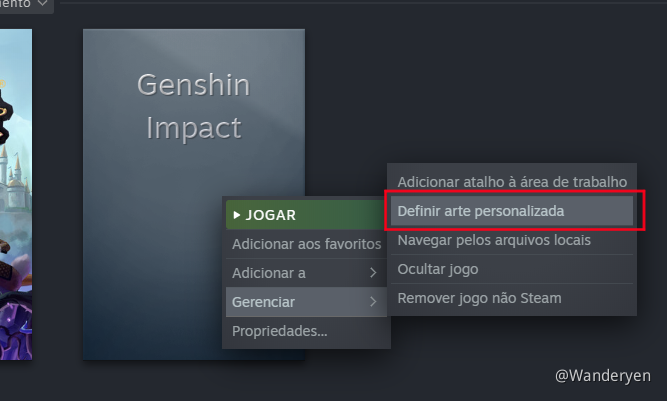
Just Right-click on a empty cover to add a custom art:
If you want, that's a zip with the covers that I've using so far: https://cdn.discordapp.com/attachments/760847662122532925/768132685663043624/Genshin_Impact_cover.zip
4. Using the Controller
Turn on your Steam Controller and START the game. Steam Controller and Steam overlay should work properly.
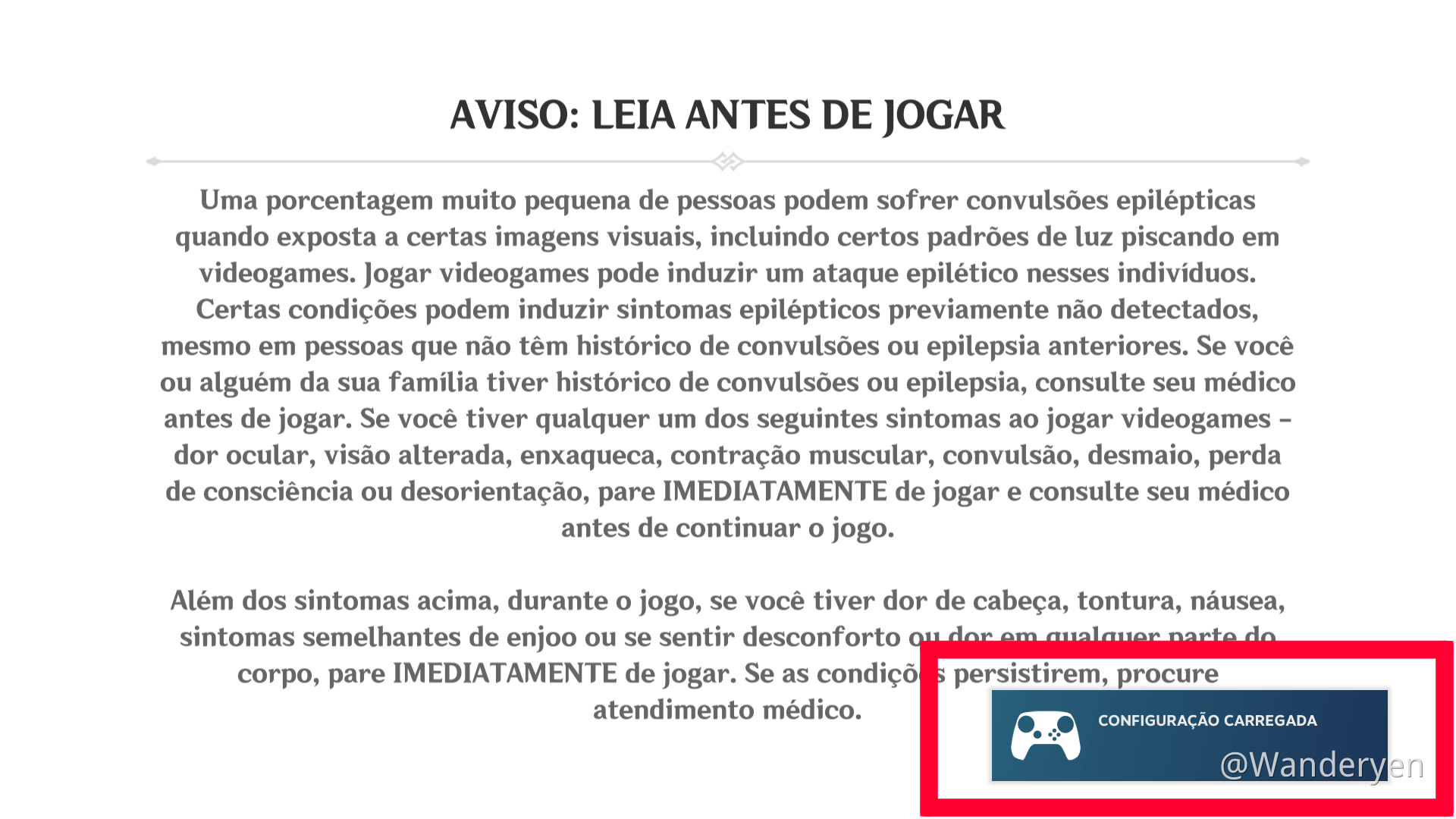
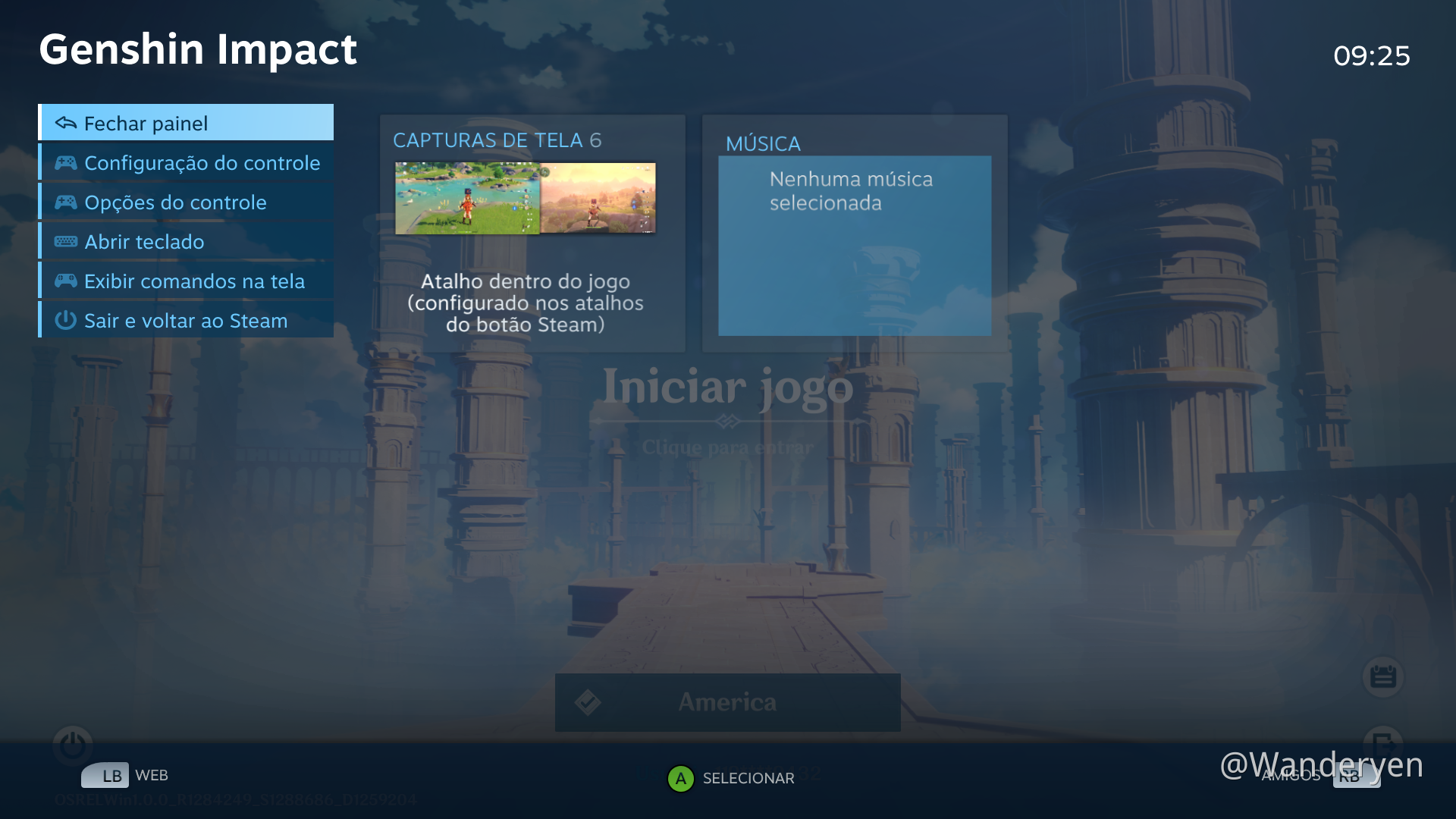
Right now, even if the game already identifies the controller and the steam overlay is working, you won't see any buttons working. Because, chock: The game can't recognize the controller and the mouse/keybord at the same time and you are right now with a controller!
Until the developers fixes this, you can use you keyboard/mouse to enter the game but we will configure the Steam controller to behave like a keyboard and mouse and access game options.
Open the Steam Overlay and Import a WASD & Mouse Template. Now you will be able to enter in the game using the controller. Actually, you can even play the game just like this and configure everything based on the keyboard/mouse settings!
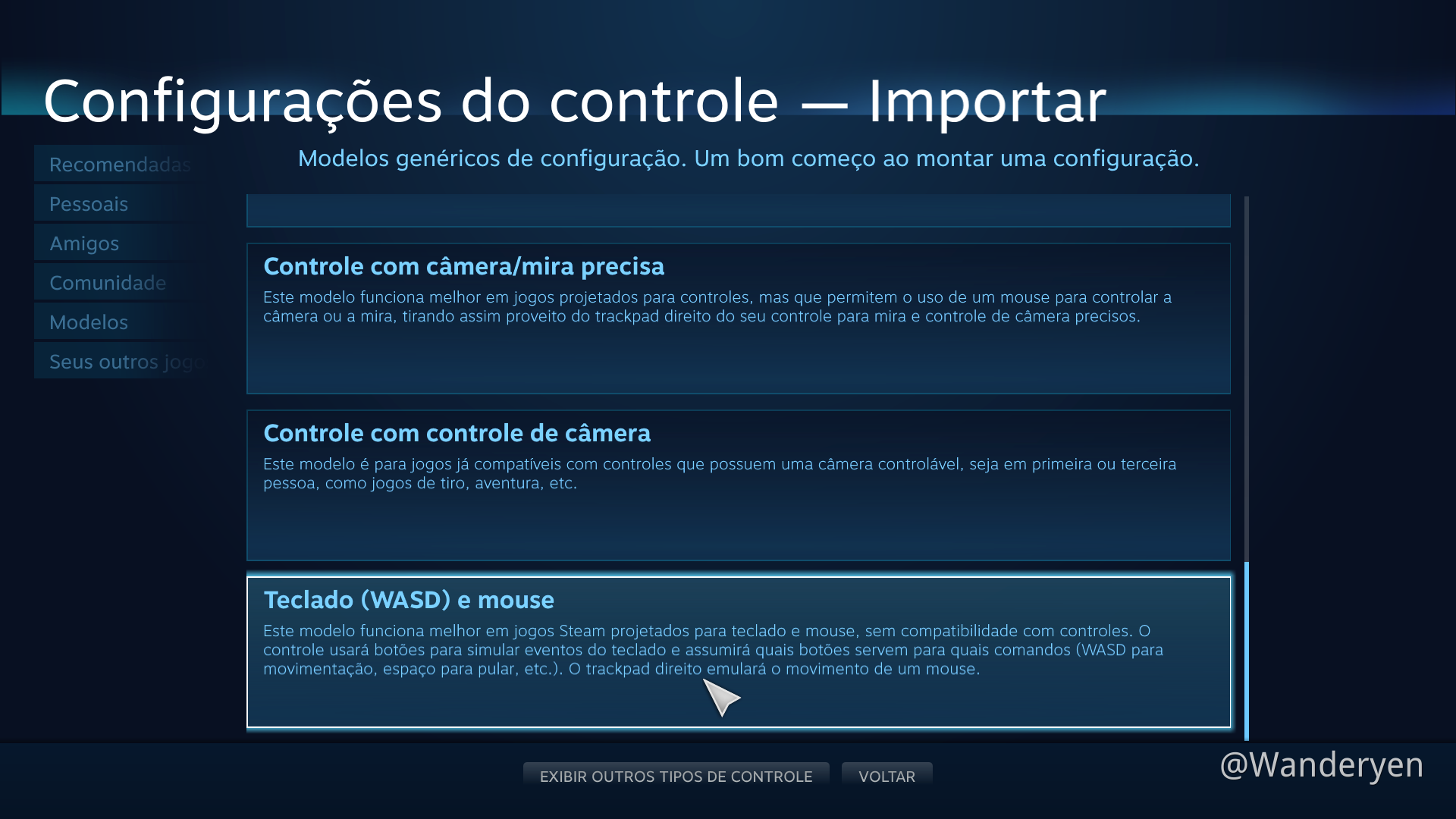
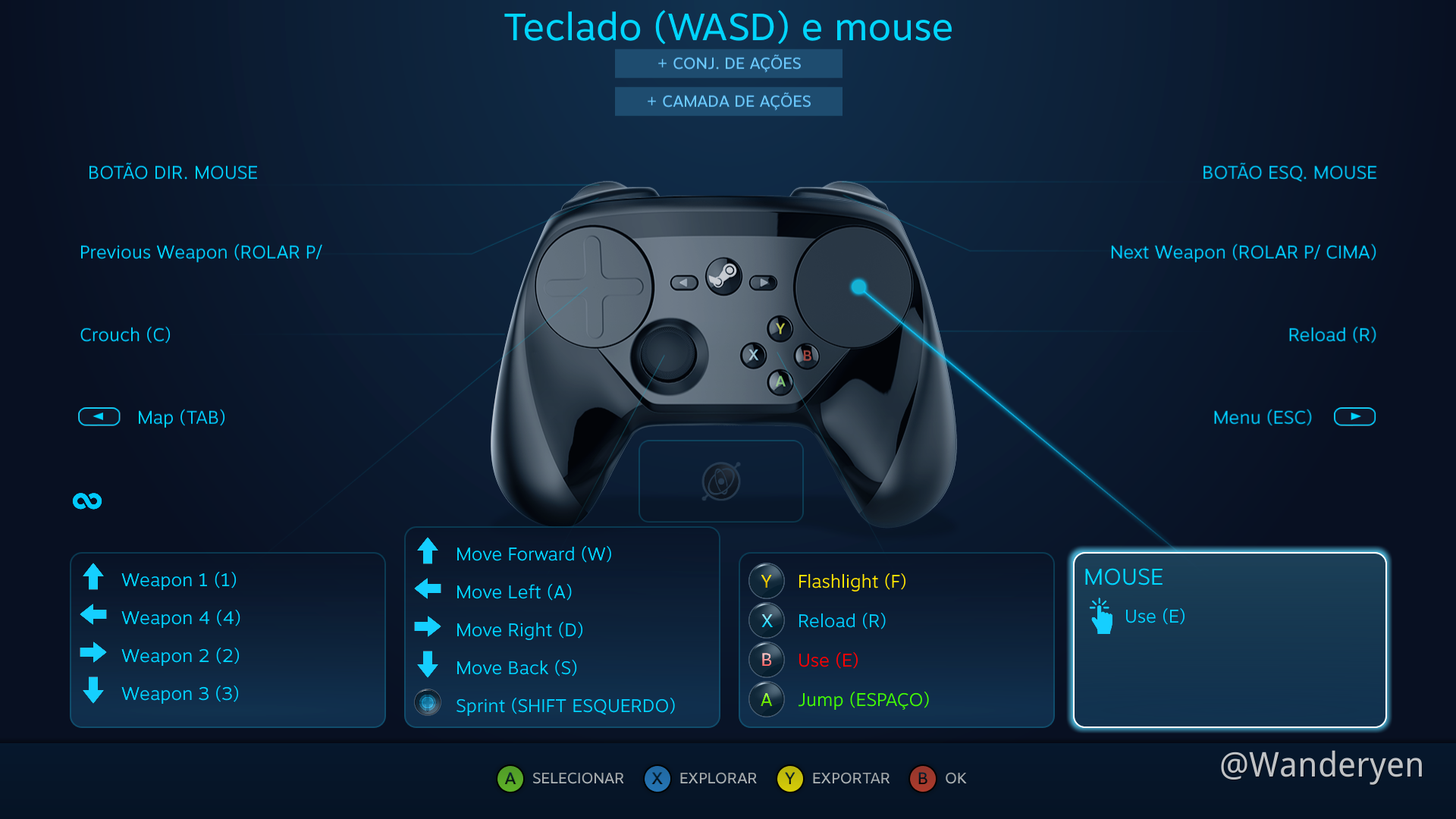
The game "has" support for a controller, with a nice and smooth movement/walk(without pressing ctrl every time), visual interface for buttons and a cool aiming mode but right now I do not recommend that since you can't customize the buttons and is a pain in the butt using B button for confirm and A button to cancel, whats makes no sense at all. In addition to other problems that I'll comment later.
In the Game Options, you can change for the Joystick option in Controls, but for that you have to put a Controller Template on Steam Controller since the game will not recognize your WASD & Mouse Template. Remember that once you select the Joystick option your Mouse & Keyboard will stop working in the game, besides the game doesn't remember that Joystick option and always boot as a Keyboard/Mouse (miHoYo please, fix that!)
*Also, actually you CAN'T customize the hotkeys in the options! Both for keyboard and Joystick. It's so sad...
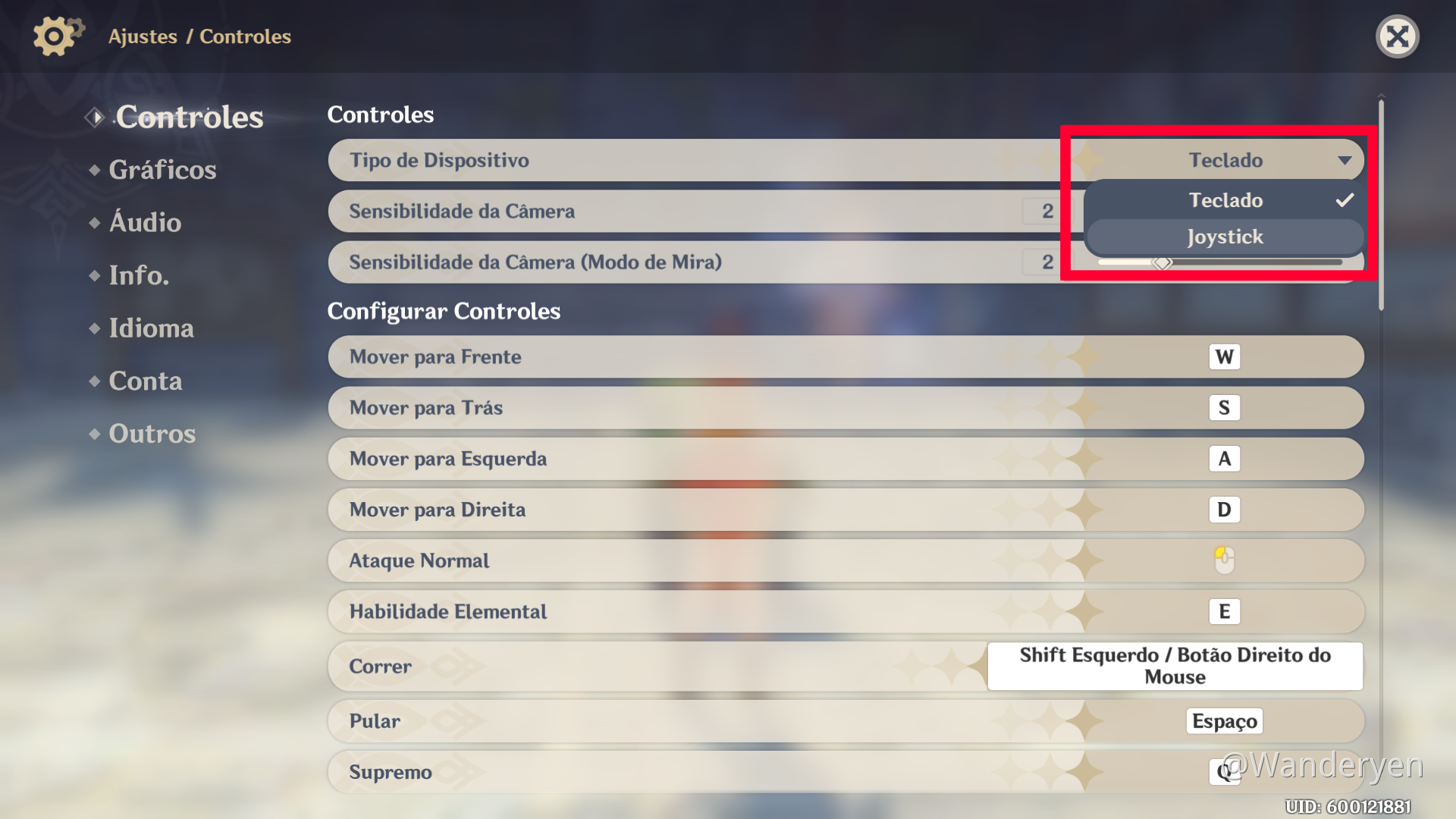
And that is it. Would be awesome play it on Joystick mode, but right now the best option is adjust your Controller to act like the Keyboard/Mouse.
My Steam Controller
For 2 weeks I've been configuring and adjusting the controller to the most intuitive design possible. Now I can say that is very stable and ready to be shared, so feel free to enjoy:

steam://controllerconfig/genshin%20impact/2264056411 (Brazilian Portuguese)
Features
• Automatic switching between cursor screen and gameplay controls
• Controller configured to function as either Keyboard / Mouse or Joystick
• Fully simulated mouse for a better camera control
• Normal mouse mechanics for Aiming were maintained. (Unfortunately, I chose not to simulate the aiming mode with the triggers due to an inconsistency of the commands.)
• Easy character switching by tapping the left trackpad
• Cursor mode (Alt key) fully integrated with click and release system
• Easy to Access in Battle inventory
• Shortcut roulette optimized
• Cursor layout integrated with all photo mode shortcuts and skip dialogue
• Zoom In, Zoom Out, Invitation acceptance window, tutorial details (G), domain screen (U) and interrupted challenge (P) all accessible by cursor mode (top right button)
Controller Support Feedback
After testing the Joystick option for a while now, I have a few things to report since need improvements to be really useful and bring the game your full potential.
Joystick
• [Critical] Game doesn't remember that Joystick option is selected and always boot as a Keyboard/Mouse, making it mandatory to go to the game options every time to change that.
• [Critical] It is not possible to change the buttons in the key configuration in the options.
• [Critical] Standard Joystick template uses A button (green) for CANCEL and B button(Red) for CONFIRM in most interfaces (and you can't change that), which goes against common sense and already known that it is just the opposite. In fact, several purchases I've made unintentionally because of this inversion of buttons. Is very confusing.
• [Critical] Game will not recognize your WASD & Mouse Template when you are using the Joystick option, preventing access to certain hotkeys only present on the keyboard and preventing customization of the Steam Controller. Also preventing accessing some menus quickly with ESC for example and even typing. It is also not possible to control the screen when accessing purchase windows, nor the prayer history or even the news of the game, since that screens can't recognize the controller. Due to this, also the game has problems in interpreting the Steam Controller 'Mouse Similar Lever' when accessing the Shortcut Roulette, which is practically unusable due to a lack of sensitivity and I can't play without 'Mouse Similar Lever' since the mouse movement is much better than a controller lever.
• [Critical] In the MAP, it is not possible to use the analog (camera) to move more quickly around the map, making its manipulation very slow and making it difficult to quickly visualize more distant locations. (This problem would be easily overcome with the Steam Controller configuration, but again the game prevents the mouse from being recognized while the Joystick mode is currently active)
• [Critical] You are unable to give commands on the controller after naming a new pin on the map.
• [Critical] There is no "alt key" mode to switch between cursor on the joystick, which would be useful on screens where you must use the cursor.
• [Critical] Very slow process of switching between artifacts with the analog in the character selection screen.
• When you are in the Shortcut Roulette (top left button), when you return the analog to the center, the game confirm the currently selected button instead of being active only when you release the analog finger.
• Holding RT does not exponentially increase the amount of resources available to make consumptions, for example when using EXP cards
General
• Friends list WITHOUT shortcut. Could be integrated with multiplayer interface on 'F2 hotkey'
• Needs an option "Hold to walk" instead 'Switch between walking/running' only. That option will allow integrate the walk in the controller movement lever. (Is a feature that I enjoy when exploring and right now I can't use like this)
• There's no key binding to "X key (release from the wall)" on adjustments / controls screen
That is it. Thank you very much for reading and I hope that my technical analysis help the game, which is already amazing, reach its true potential in terms of control.