Oh, Hi guys~ 
you have been waiting this tutorial right uwu, so i'm here for you, i hope they still keep up like this in the future~
kalian sudah pasti menunggu lama untuk membaca tutorial ini, jadi aku disini ingin memberikan step by step untuk kalian.
it's my first time writing this tutorial, i hope you like it and enjoy it~! 
Ini pertama kalinya aku menulis tutorial seperti ini, aku harap kalian menyukainya~
oh wait! before we next to the tutorial, i want to apologize before tutorial... my English writing really bad 
Okay, then lesgo to the tutorial now~!
Mari kita langsung ke tutorialnya saja ya

some steps by steps you can check it here to for installing Huawei AppGallery.
beberapa steps tersedia disini.
Huawei AppGallery on Android - HUAWEI Malaysia
1. Install Huawei AppGallery on android, you can get it here.
Install Huwae AppGallery di android, kalian bisa mendapatkanya dari sini.
https://appgallery1.huawei.com/#/app/C27162
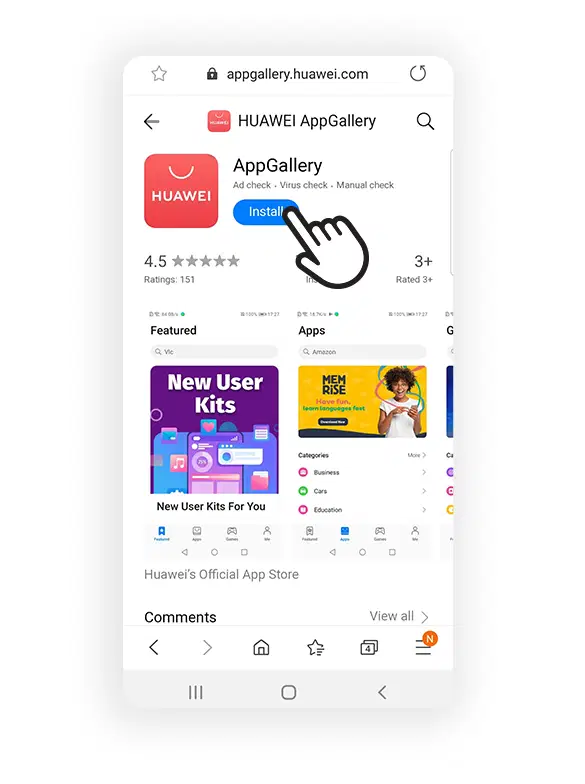
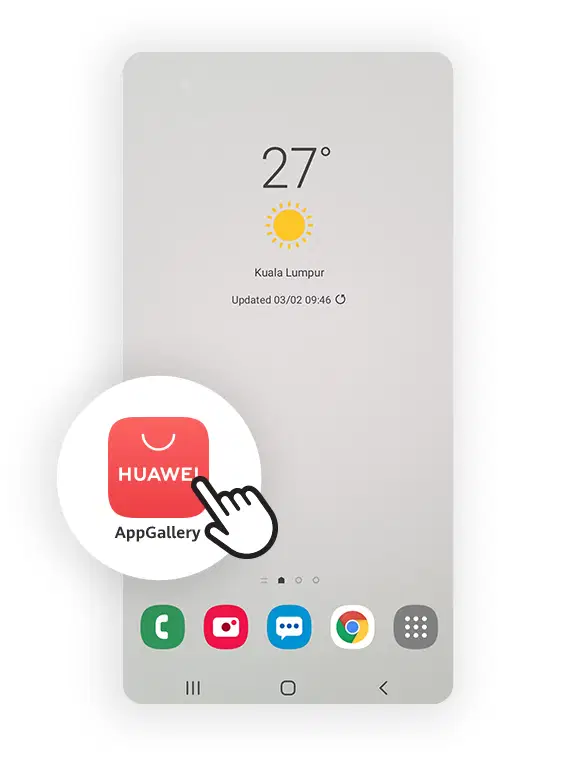
2. Enter Huawei AppGallery, if already installed on your android device
klik Huawi AppGallery, kalau aplikasi sudah terinstal di android.
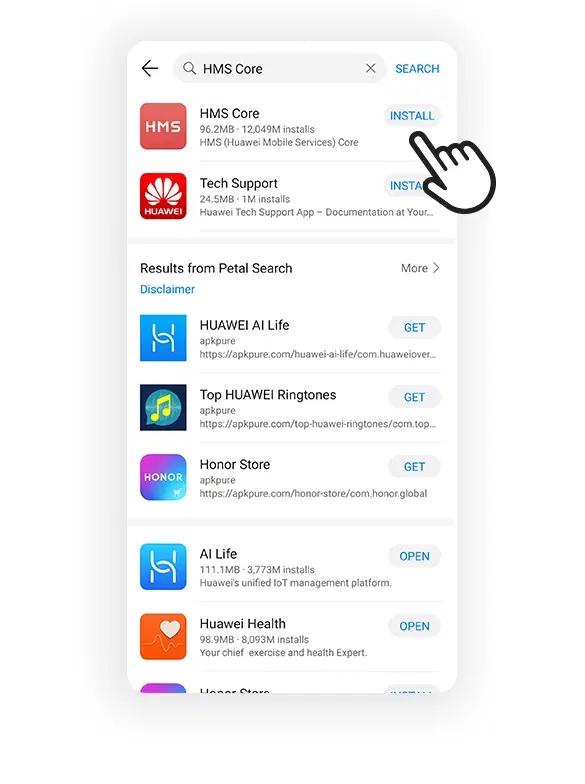
3. In AppGallery ,search for "HMS CORE" and click to install
Ketika sudah terinstall Huawei AppGallery, cari "HMS CORE" kemudian di instal, kemungkinan ini membantu kalian untuk menggunakan beberapa layanan dari Huawei.
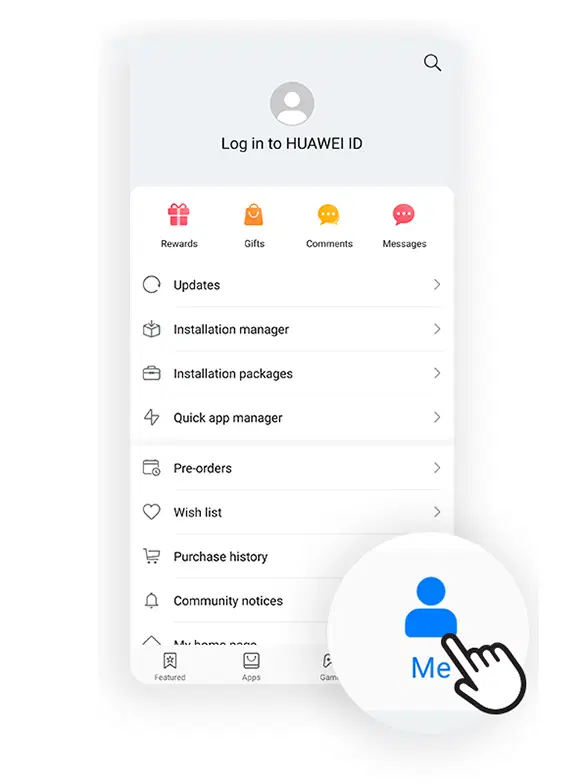
4. Click "Me" button at the right bottom of Huwaei AppGallery homepage. Then choose "Log in to Huawei ID" to register for Huawei ID Account.
Cari "Me" di bagian sebelah kanan halaman di aplikasi Huawei AppGallery. Kemudian pilih login to Huawei ID untuk melakukan pendaftaran akun.
5. Register Huawei ID with your phone number or email address
Lakukan pendaftaran Huawei ID menggunakan nomor hp ataupun email kalian.
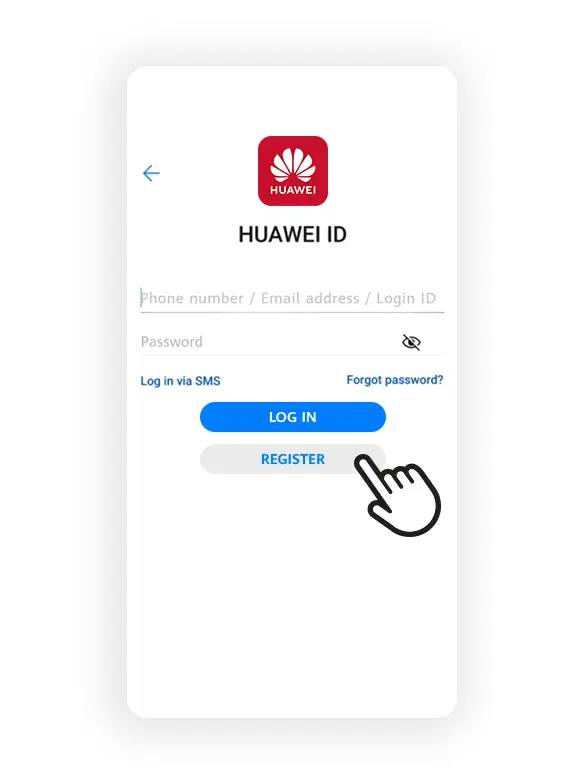
you can use Google and WeChat. But i'm sorry according to screenshot permission by the apps. I cannot screenshot it for you.
6. Please select your country of residence as your Huawei ID registered country. For me i choose Indonesian because thats i'm live.
Pilih negara/kawasan sesuai dimana kalian tinggal agar terdaftar berdasarkan tempat tinggal kalian untuk Huawei ID. Aku memilih Indonesia. Karena memang tinggal disana.
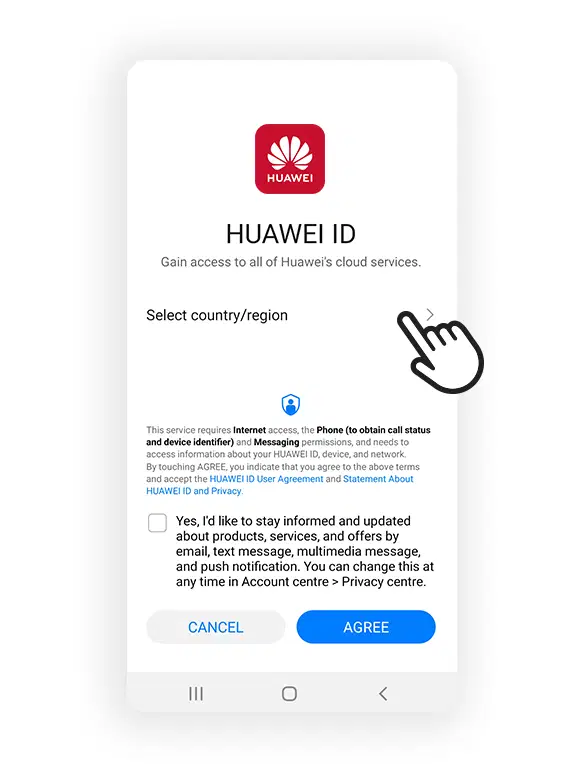
if you have been finished the register, you account ready to use it.
Jika kalian sudah berhasil mendaftarnya, akun kalian siap untuk digunakan.
7. Start Explore your favorite Apps and enjoy exclusive benefits, freebies and in-app vouchers with Huawei AppGallery!
Lihat semua yang ada di halaman menu untuk melihat beberapa aplikasi favorite kalian dan nikmati eksklusif yang ditawarkan.
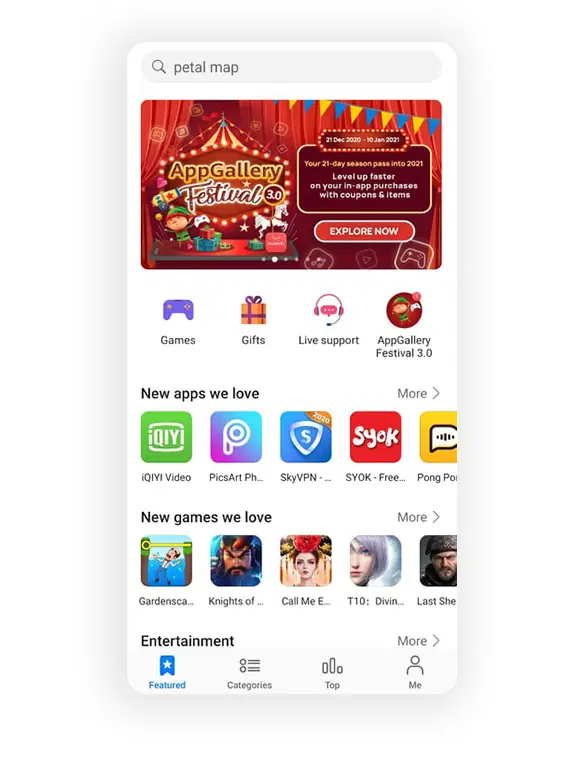
just reminder, step 1- step 7 guide has been shared with Huawei in their website : Huawei AppGallery on Android - HUAWEI Malaysia
Now, let's moving to another step, like the title "How To Play Honkai CN Server via Huawei AppGallery?"
Sekarang, mari kita lanjutkan ke langkah berikutnya, seperti judul artikerl ini yaitu "How To Play Honkai CN Server via Huawei AppGallery?"
8. your account has been ready, now you go to "me" button at the right bottom of Huwaei AppGallery homepage. Then you search "setting".
Akun kalain sudah siap digunakan, sekarang pergi cari "Me" di bagian sebelah kanan tampilan Huawei AppGallery. Kemudian cari "pengaturan".
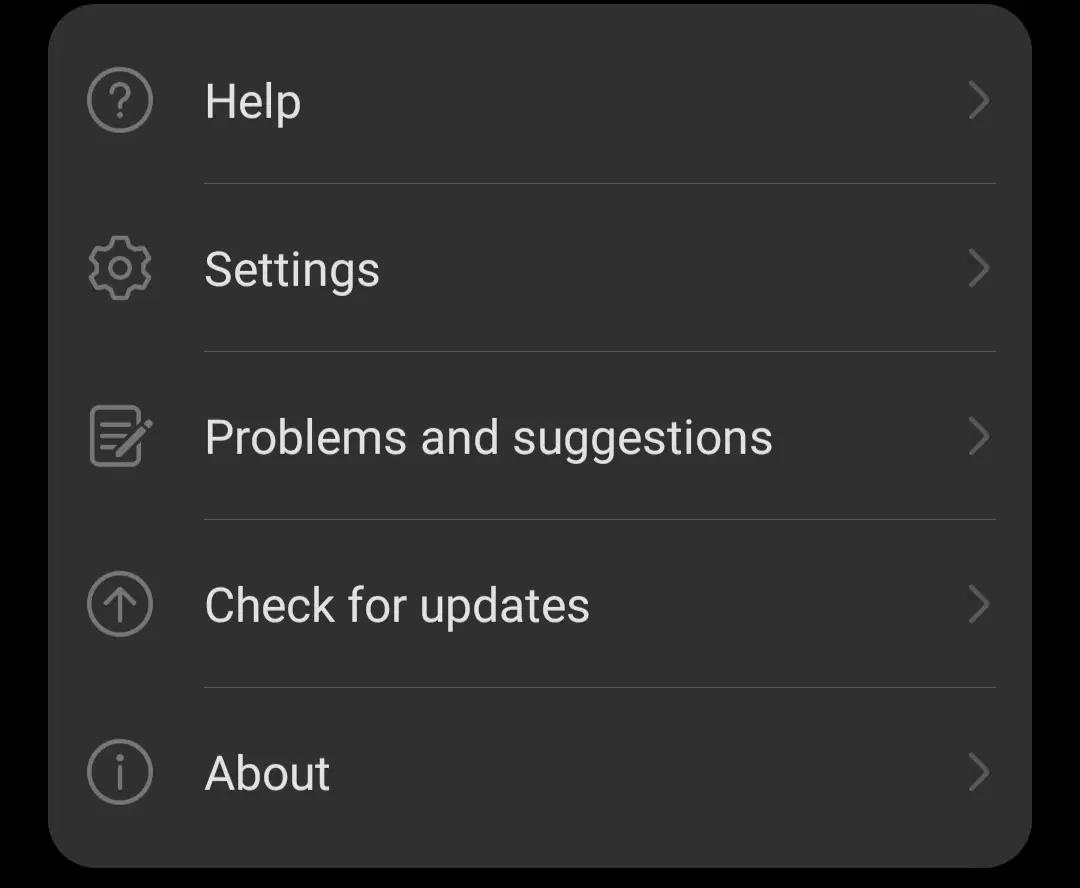
9. Click "setting" then search "Change Region/Country".
Klik "pengaturan" kemudian cari "Ubah Negara/Kawasan"
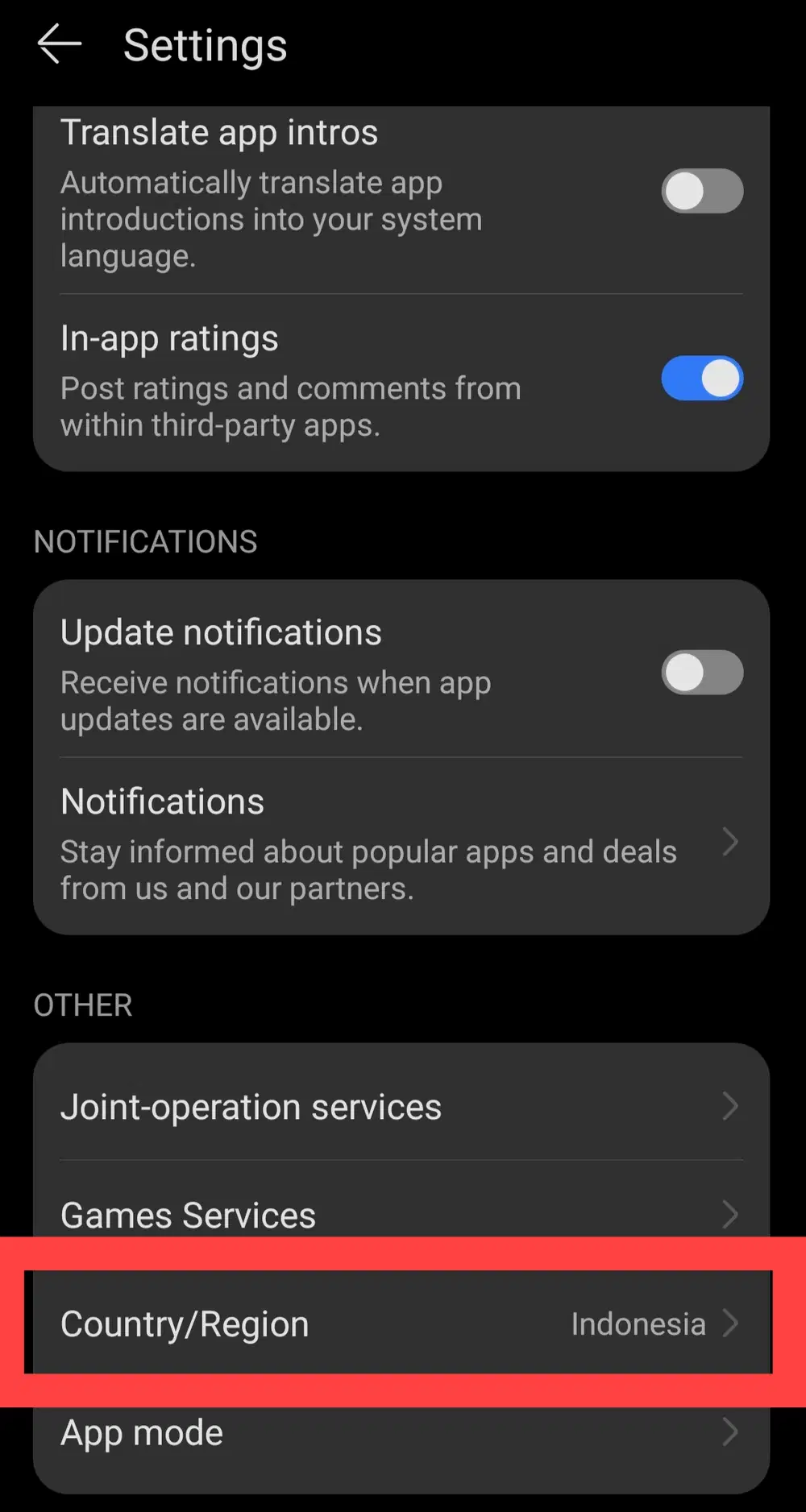
10. After click "Change Region/Coutnry". You will seeing the display like this.
Setelah menyentuh "Ubah Kawasan/Negara". Kalian akan melihat tampilan seperti ini.
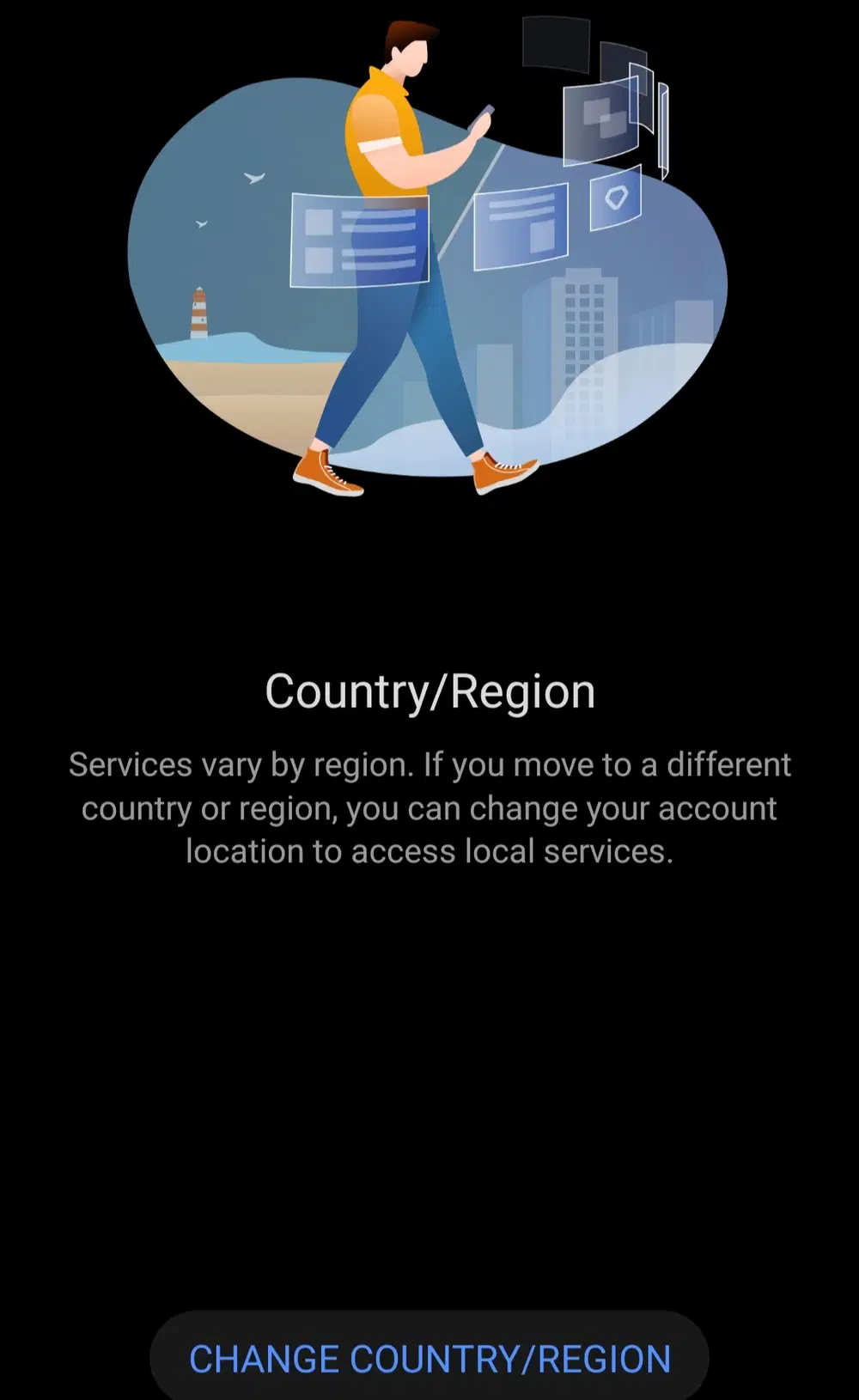
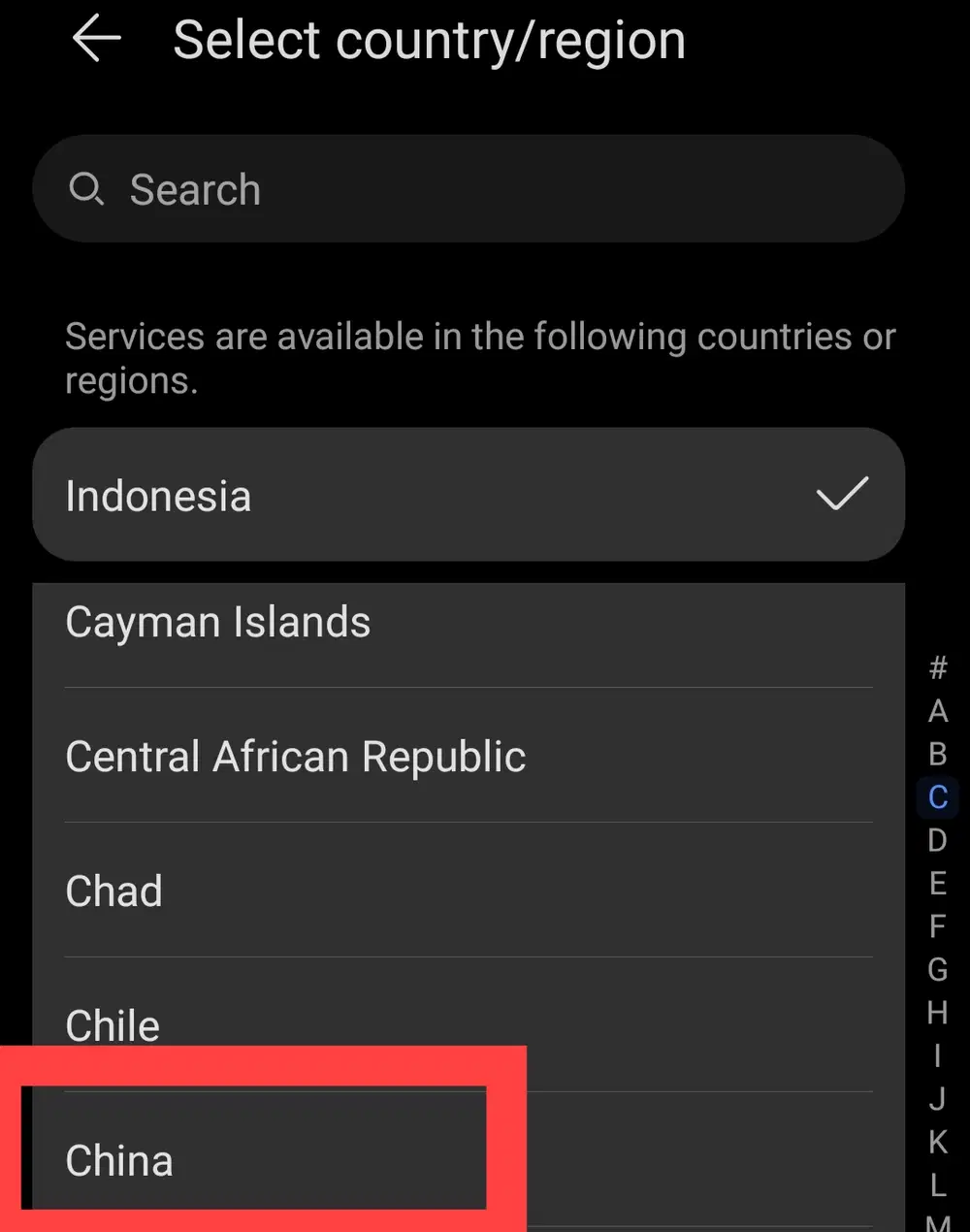
Then click "change country/region" again and then this display will for you. choose your country/region china for access china game's.
Klik "ubah negara/kawasan" lagi dan tampilan akan berubah. Pilih negara/kawasan ke China untuk mendapatkan akses game china.
after you click it, please don't forget to read the terms, okay?
setelah kalian memilih, jangan lupa untuk membaca hal penting ini, ok?
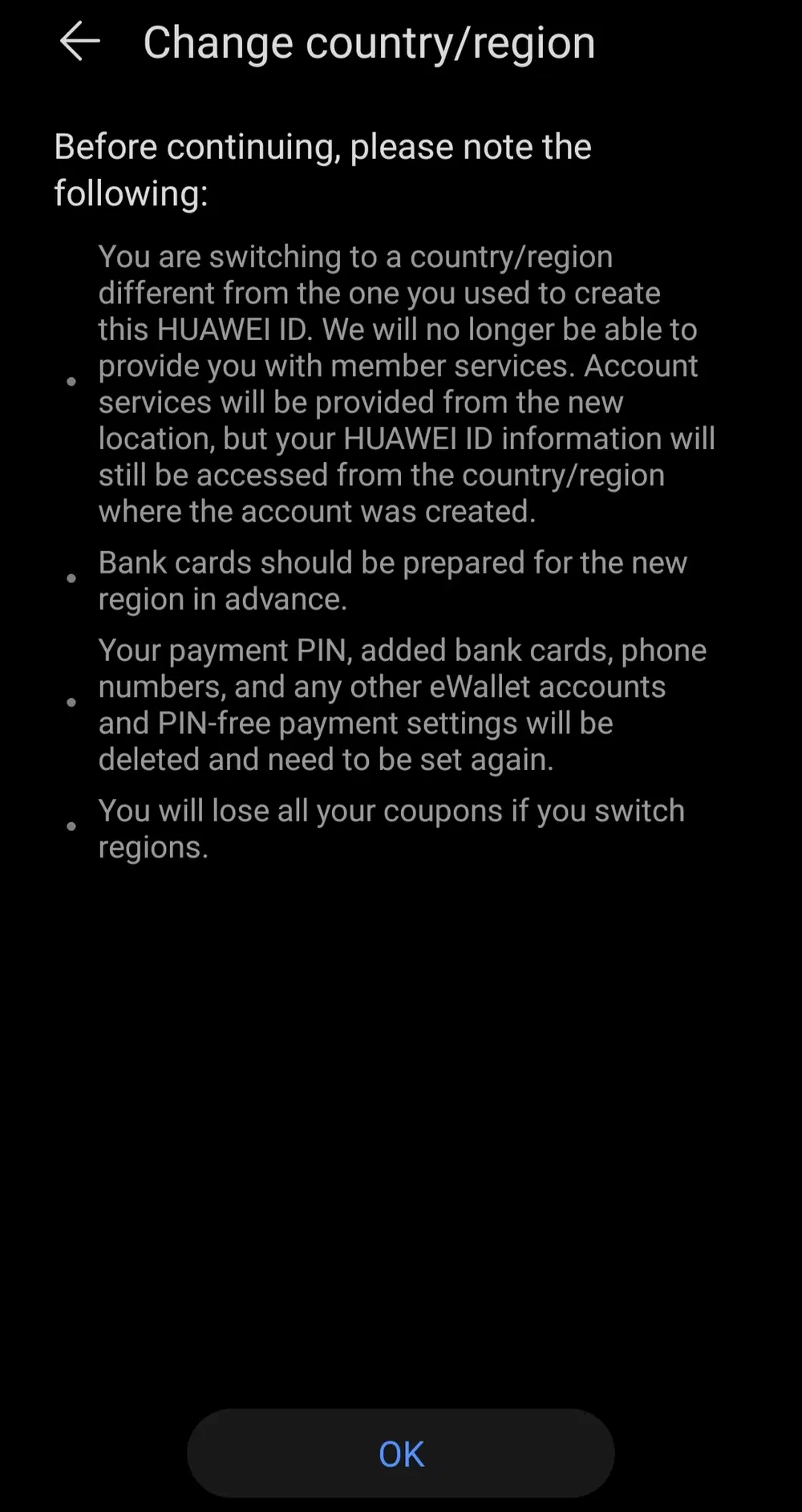
if you have been read it, click "OK". They will pop up saying "your current country/region is China".
Setelah kalian membacanya, klik "OK" dan akan muncul pop up mengatakan "negara/kawasan sudah berubah ke China".
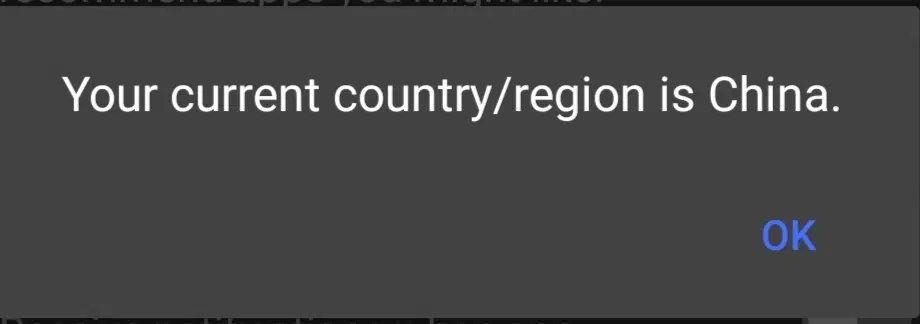
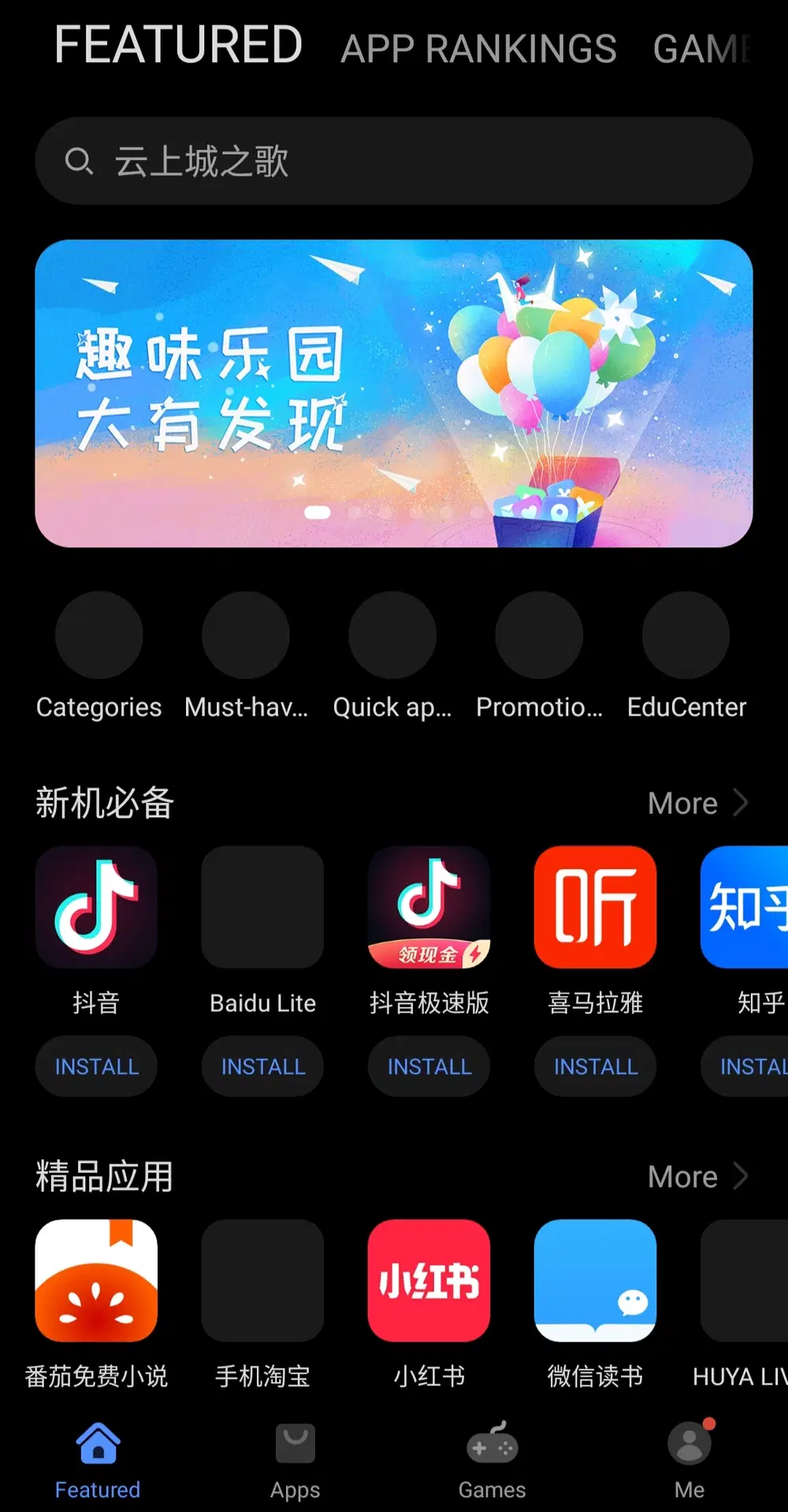
11. Now, back to the homepage. It's changed. They will showing china app's there.
Balik ke halaman Huawei AppGallery. Tampilan sudah berubah. Aplikasi akan menunjukkan beberapa pilihan aplikasi china.
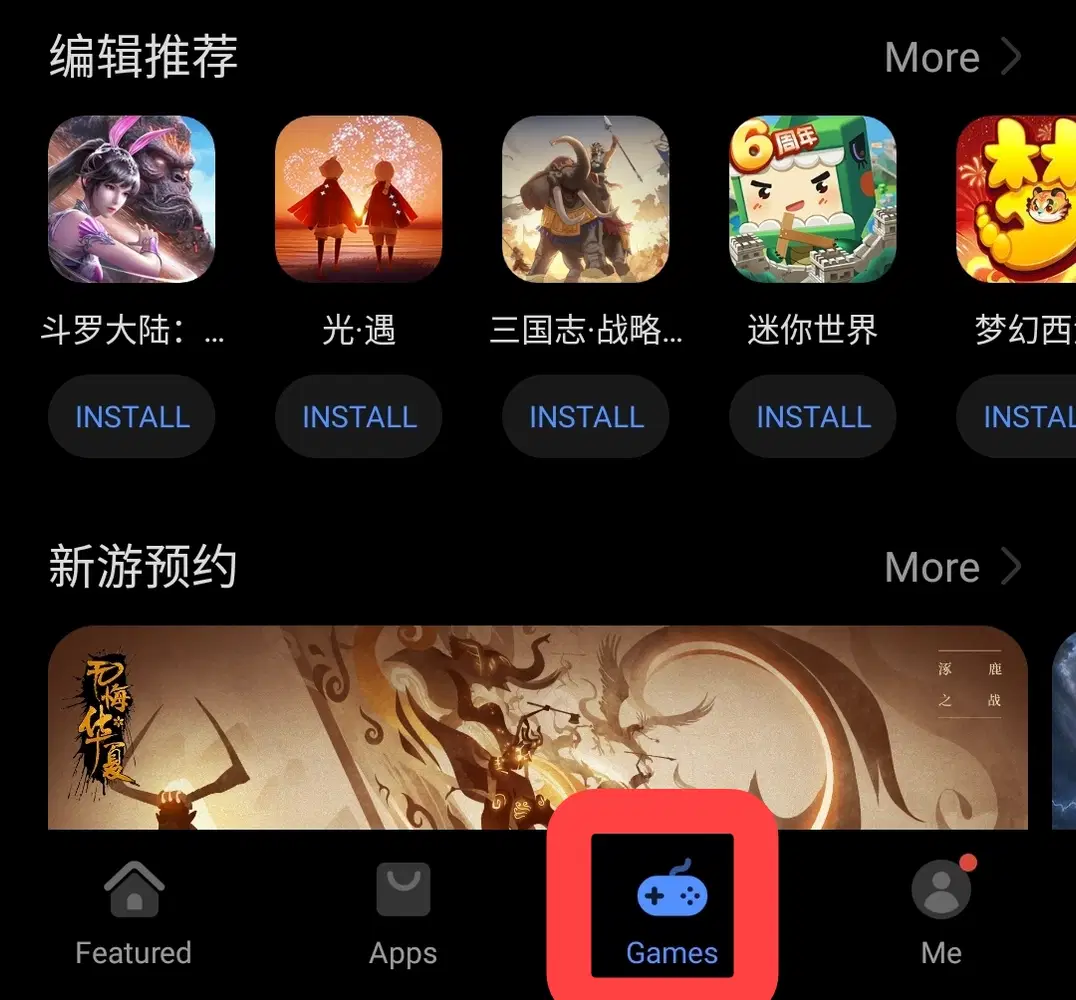
12. Click "Games". Then search with this keywords "bh3/崩坏3"
Klik "Games". Kemudian carilah menggunakan kata kunci "bh3/崩坏3"
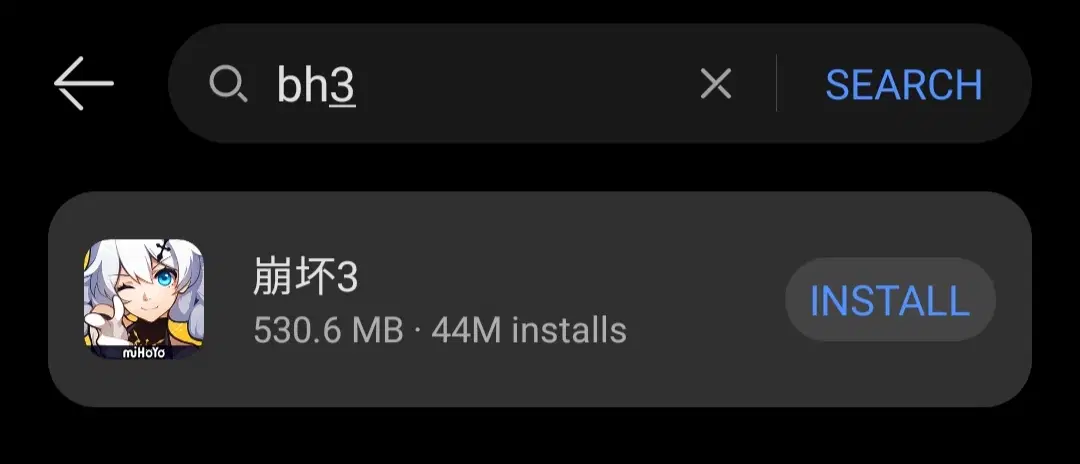
Click it!
13. Go to "install" then wait it until finished.
Langsung install aja terus ditungguin deh sampai selesai.
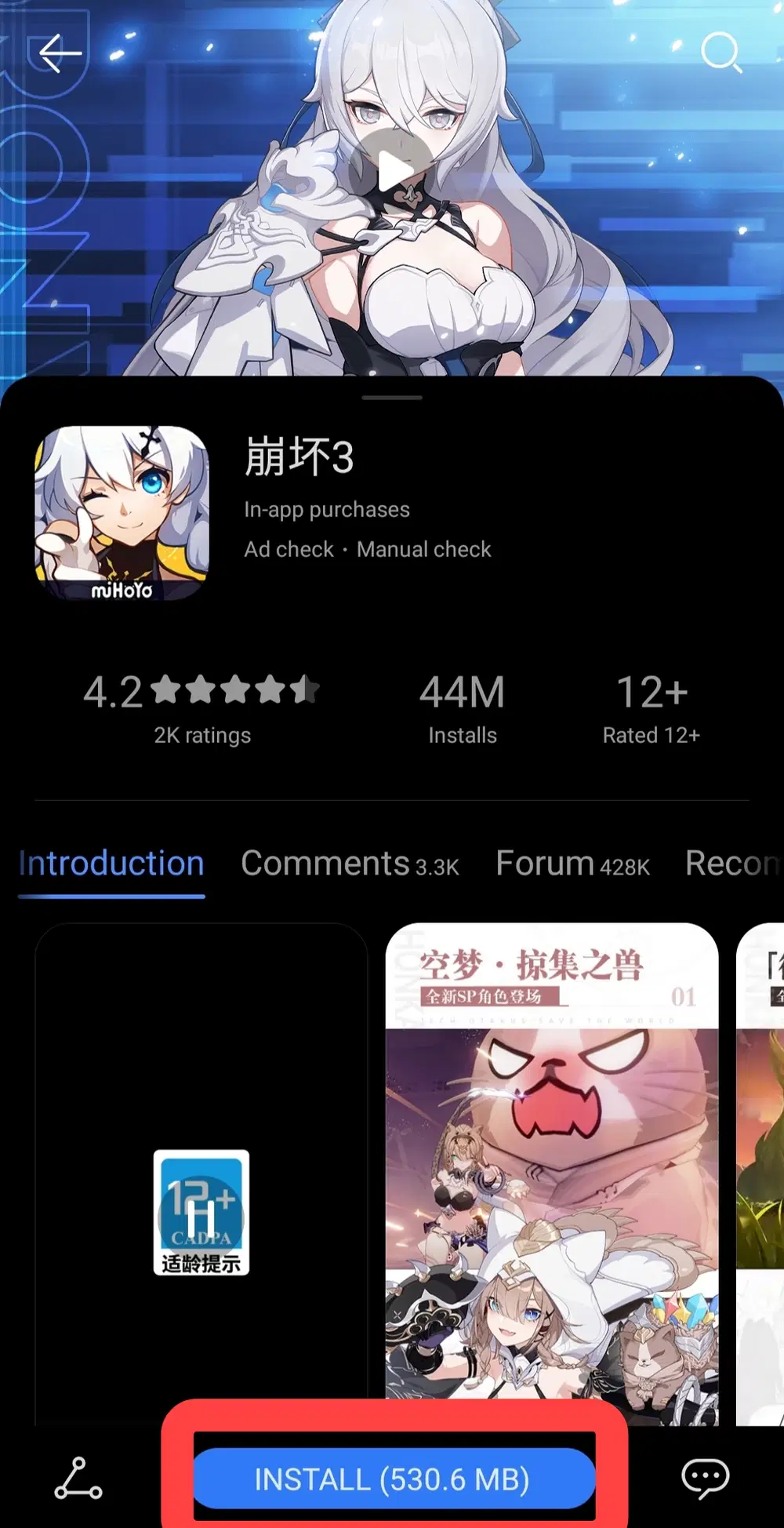
Follow the instruction after finish the installation. Then go download the in-game resources.
Ikuti beberapa instruksi yang diberikan setelah berhasil meng-install. Kemudian kalian akan diarahkan mendownload update data dalam game.
14. When downloading in-game update resources has been finished. Now, they will try to log in with your Huawei ID.
Ketika download in-game update resources selesai. Mereka akan mengarahkanmu log in menggunakan Huawei ID yang sudah terdaftar.
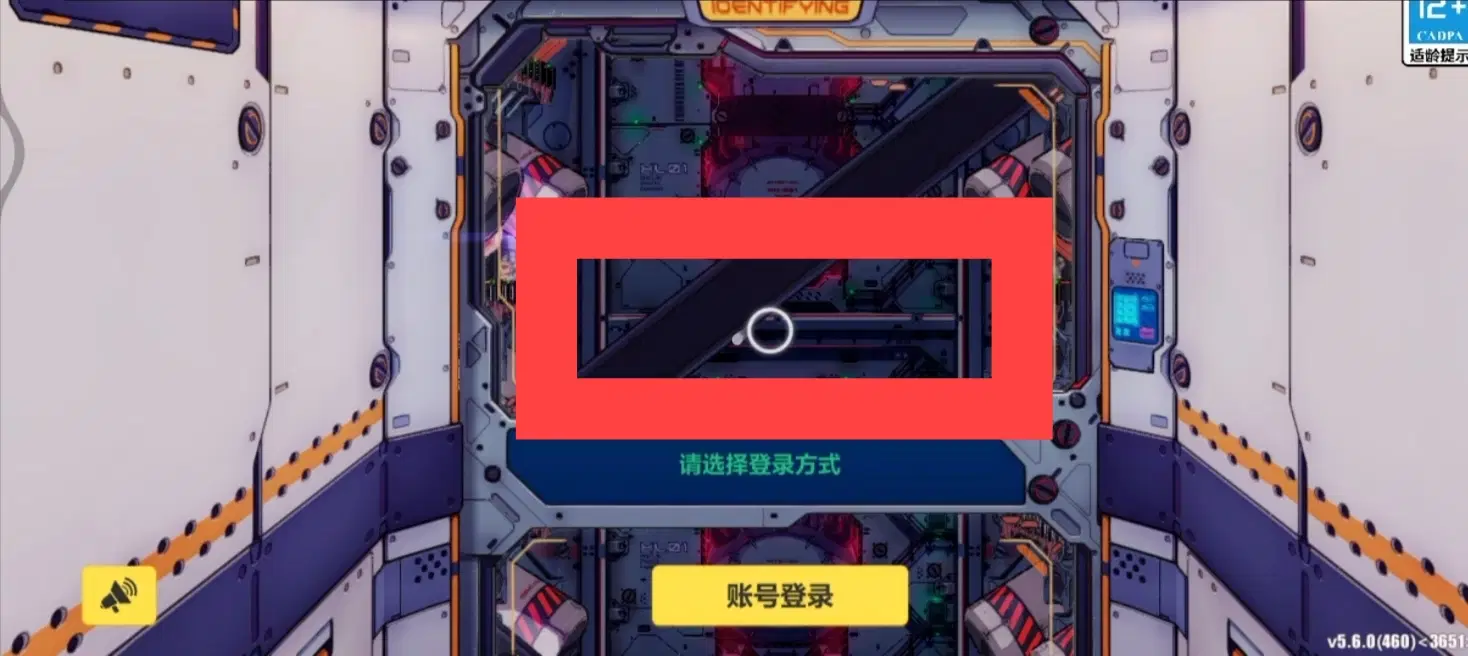
Like this one. That icon loading for Huawei ID.
Seperti ini. Itu adalah ikon memuat untuk Huawei ID.
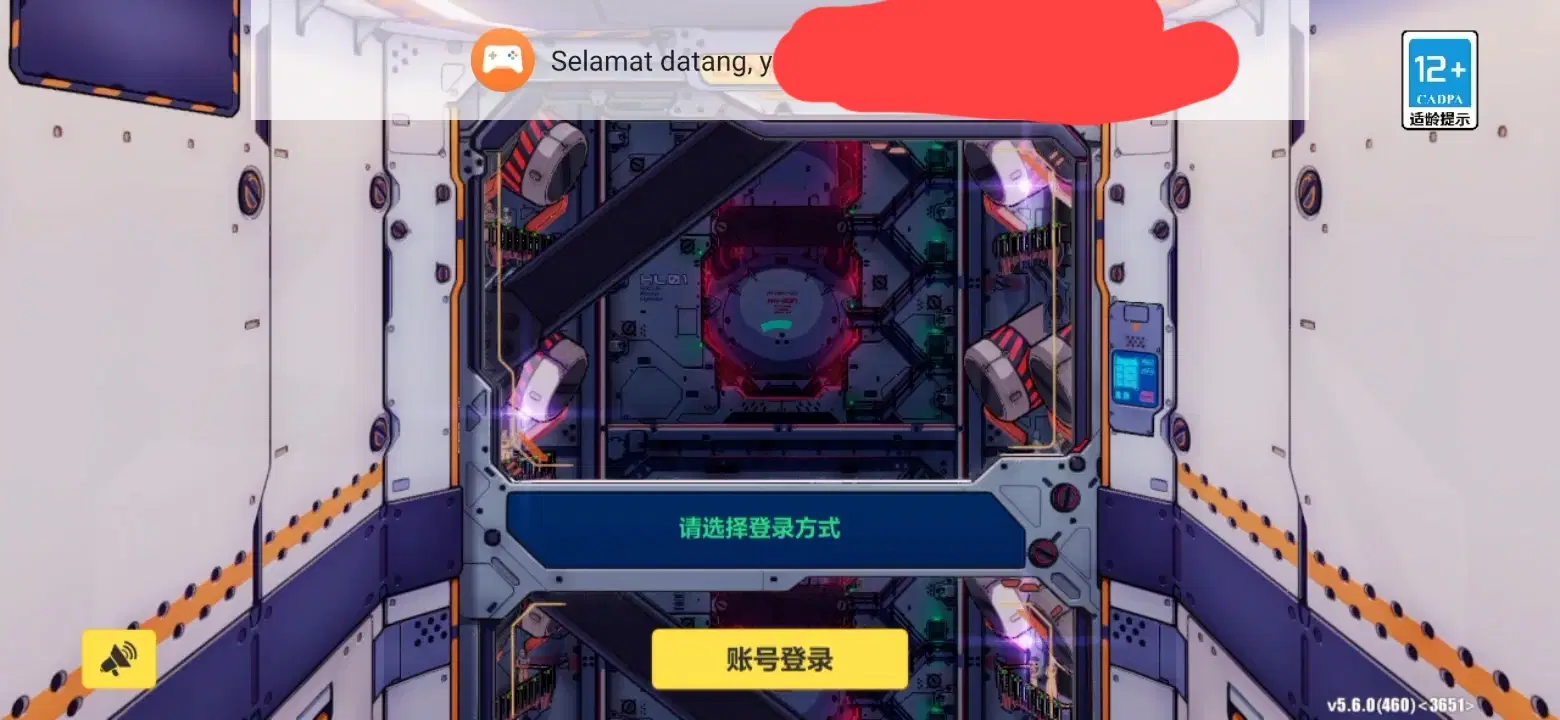
Then your account has been log in with Huawei ID.
Setelah itu, akun kalian sudah menggunakan Huawei ID yang terdaftar.
15. Your Honkai CN server account ready now.
Akun Honkai CN kalian sudah siap untuk dimainkan.
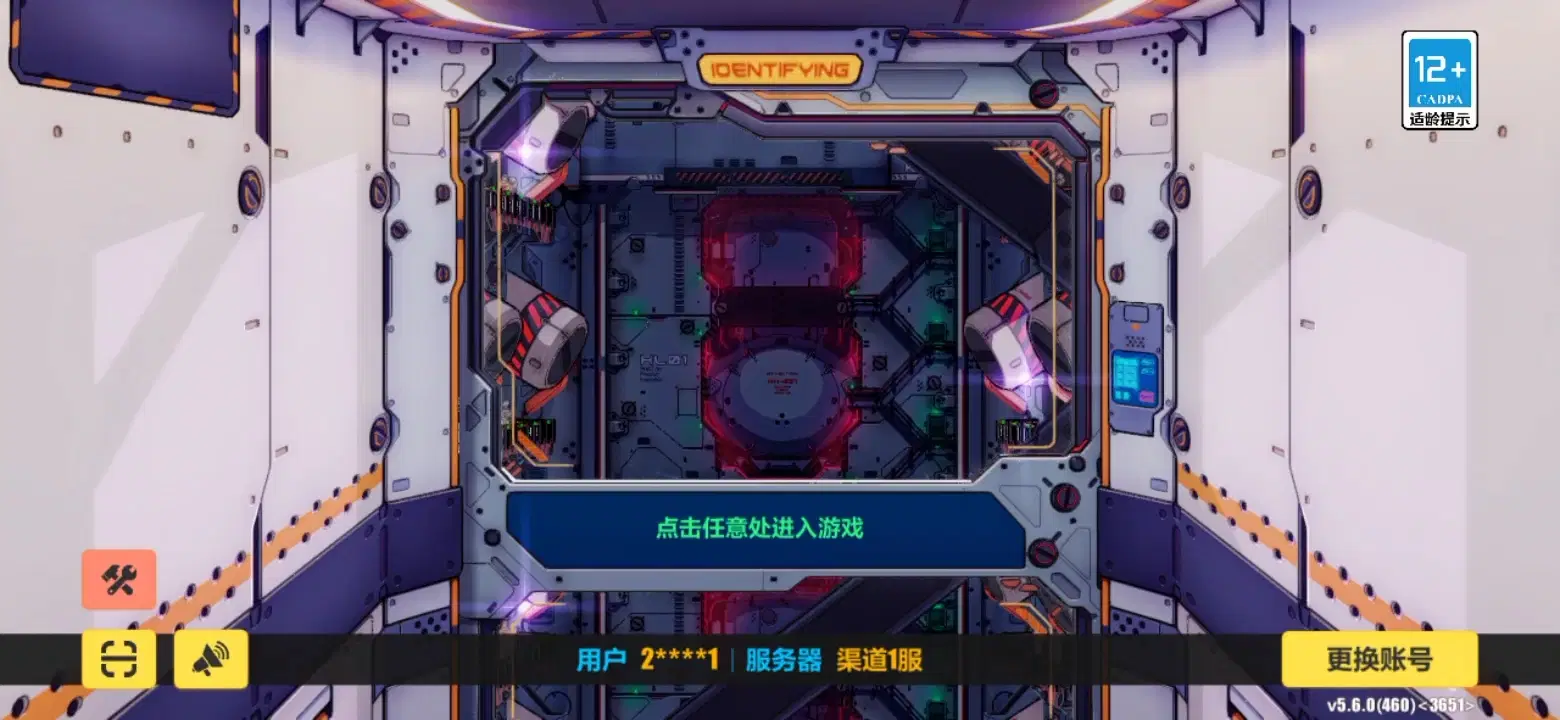
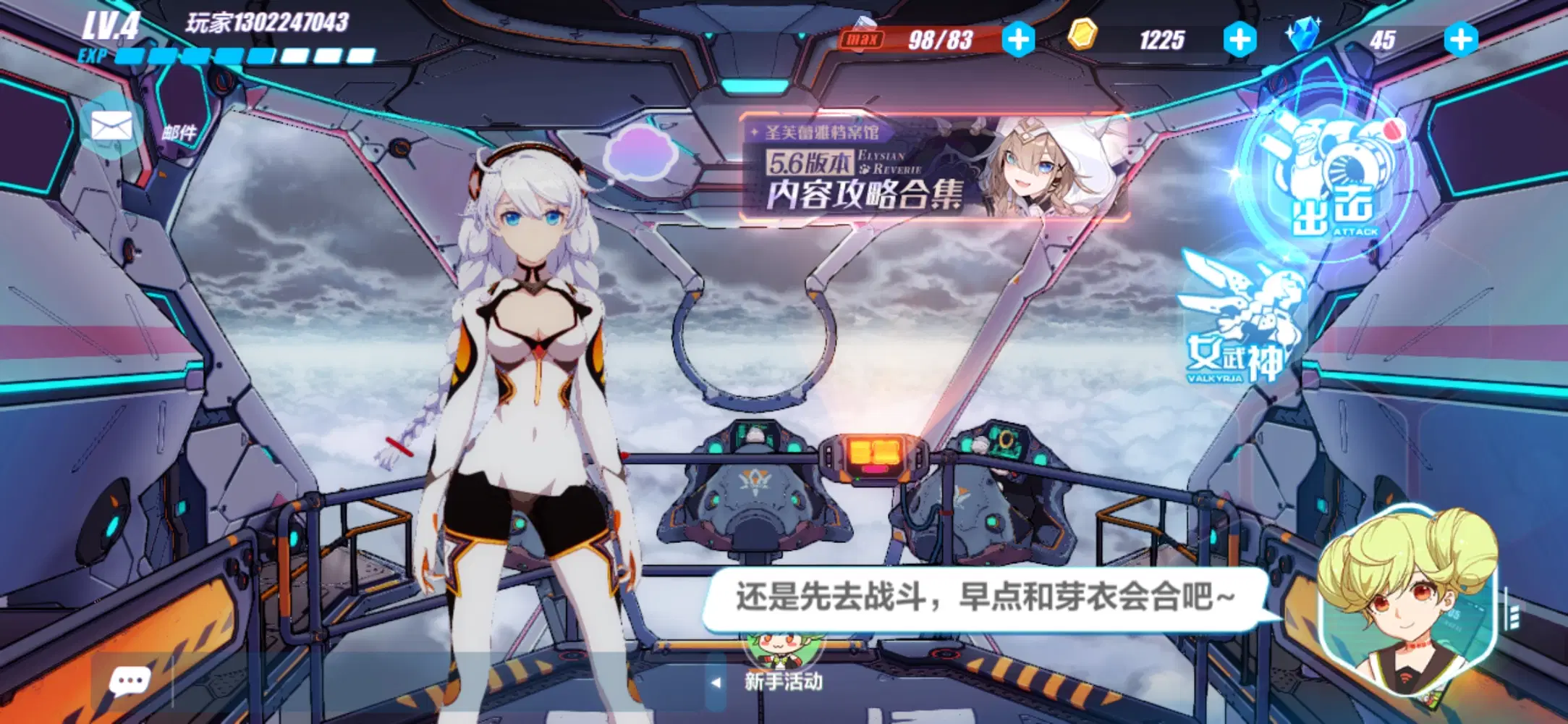
p.s : Huawei ID account is not cross-platform log in! So, please aware about this one.
So, the tutorial like this. Sorry, if my english really bad here haha....
Ya, tutorialnya seperti ini. Jika ada kekurangan saya minta maaf.
p.s : if you wanted to share this tutorial, please put my hoyolab link
~VIDEO COMING SOON, I WILL POST IT HERE~
Don't forget to tap "Follow" and "Like"
Please Help My Account Reach 2K Followers Guys. BIG TENKYU.
That's will really Helpfull for Me 
You need BiliBili Game Account's Tutorial to for playing Honkai CN server? If yes, please reach 1k followers my account, so i will make it for you
BYE-BYE