1. What This Page Is
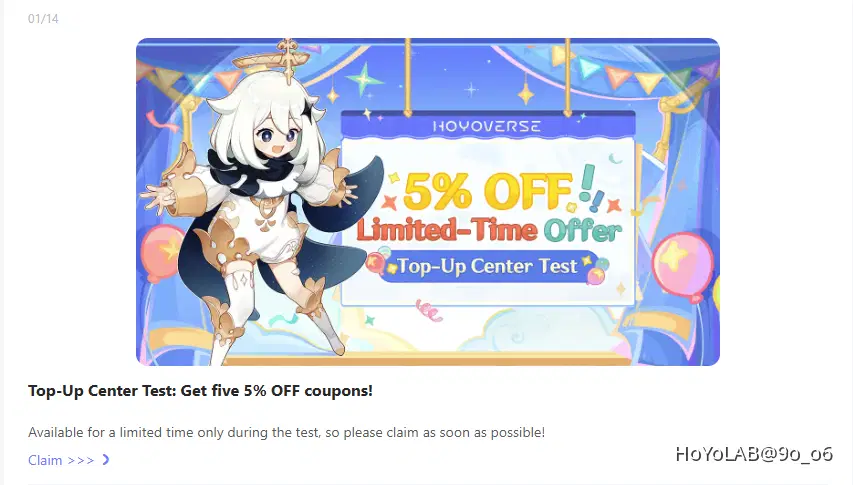
I am sure many of you have seen this 5% off and wonder what it is and how to take advantage of it. I am here to show you how to use the new website and how to save money on your purchases. 
The HoYoverse Top-Up Center is an official web portal where you can buy Genesis Crystals, Blessing of the Welkin Moon, and even Battle Pass (Gnostic Hymn) for your Genshin account. It’s a secure alternative to buying directly in-game or through platform stores like App Store/Google Play. (HoYoverse Help Center)
Now you might be asking, why would I use this over other websites or buying them directly in-game? The reason is simple: using this website will give you 5% off on any Genshin Impact purchases (does not include Wonderland). This website also allows you to purchase the Battle Pass with your 5% discount. Currently no other platform or website gives you a discount on the Battle Pass.
2. Steps to Use the HoYoverse Top-Up Center
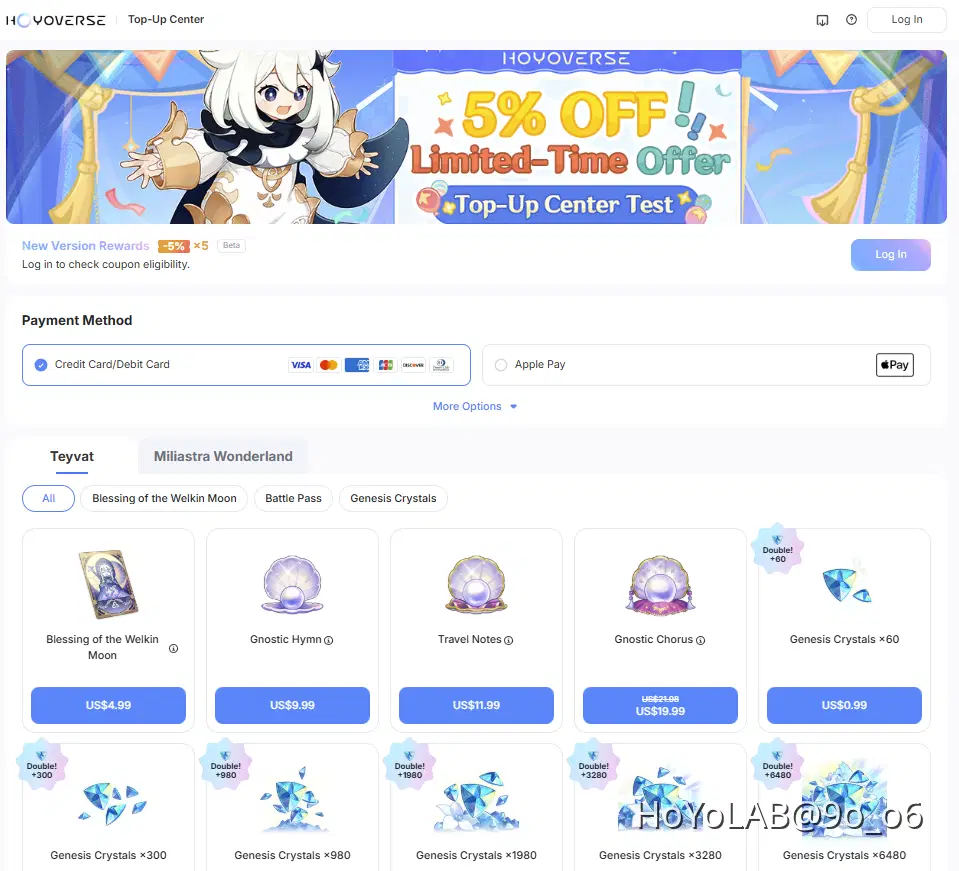
Step 1 — Open the Top-Up Page
- Open your web browser and go to:
- https://hoyo.link/9lJ5hiPtx
Step 2 — Log In
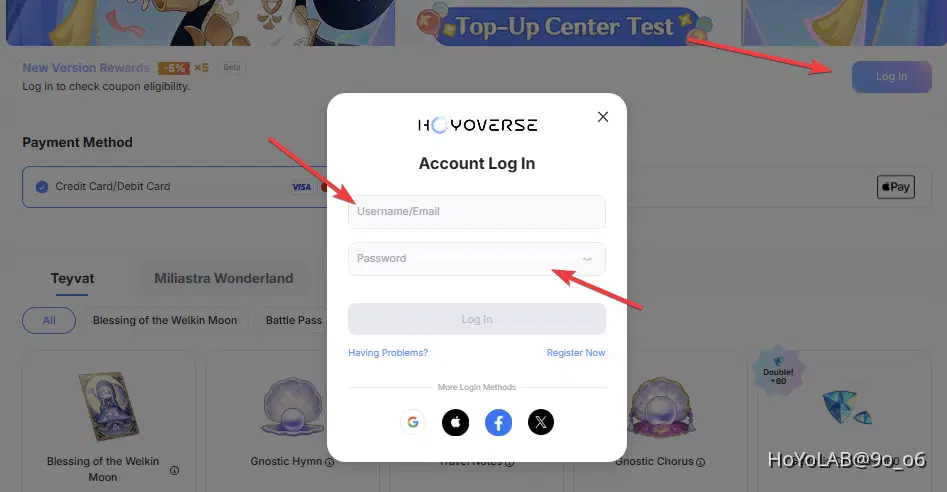
- Log into your HoYoverse account that is linked to your Genshin Impact account. You must log in with the same account whose UID you will top up. (HoYoverse Help Center)
- If you’re not logged in, you’ll be redirected to the HoYoverse login page.
Step 3 — Select Server & Account
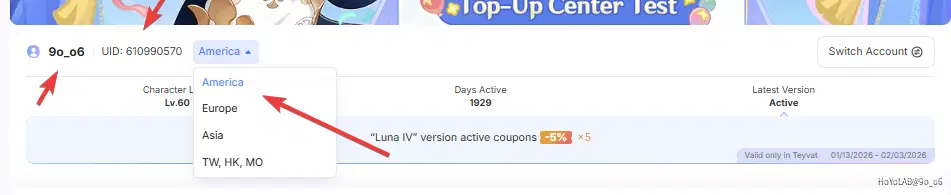
- After logging in, you’ll typically be asked to select your server region and confirm your Genshin Impact account (by UID). The server/region must match the account you want to top up. (HoYoverse Help Center)
- Example server regions: Asia, Americas, Europe, etc.
- Your Genshin UID appears in-game (in your Paimon Profile) and starts with a number that tells your region.
Step 4 — Pick What You Want to Buy
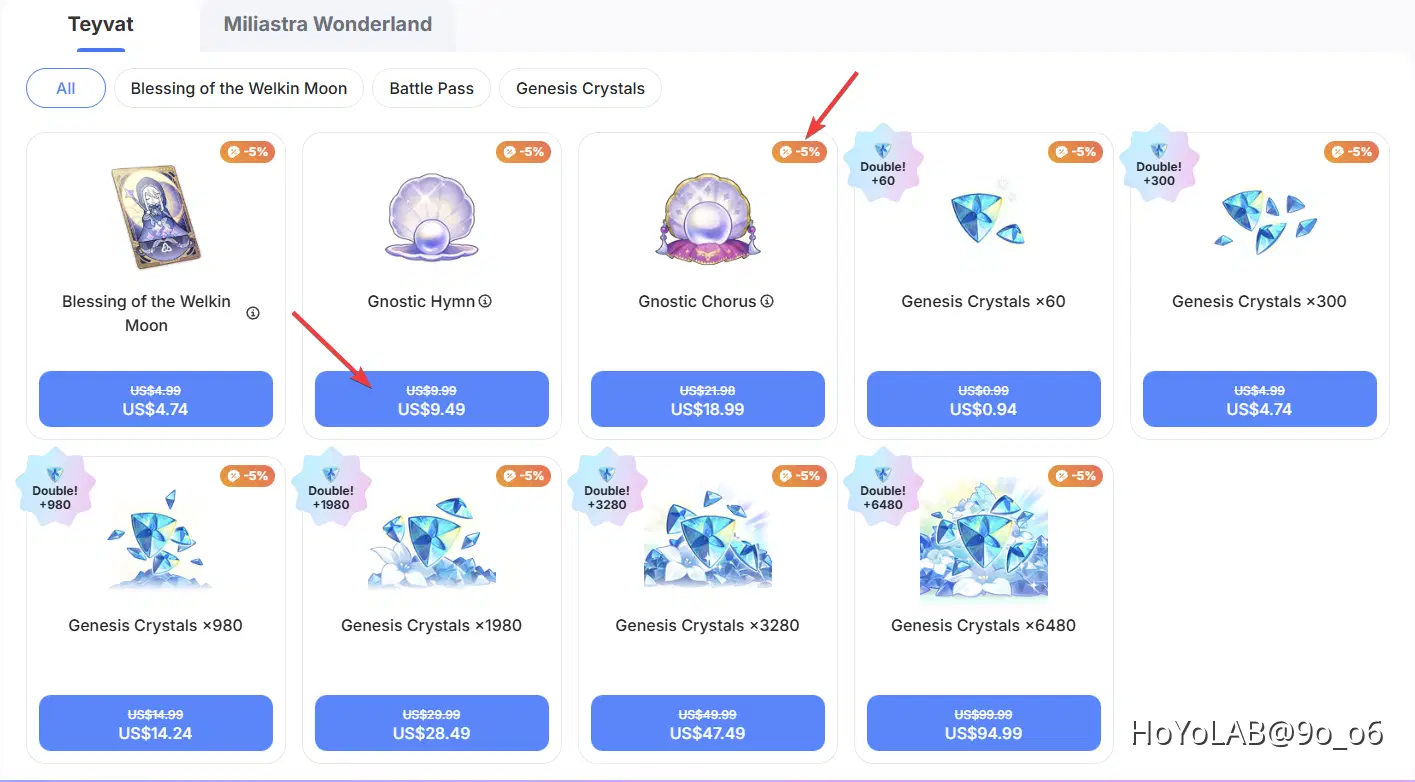
- Once logged in and an account selected:
- Choose Genesis Crystal pack (various sizes).
- Or select Blessing of the Welkin Moon (month-long daily bonuses).
- If available, choose Battle Pass (Gnostic Hymn).
- Then click “Buy” or “Next”.
Step 5 — Choose Payment Method

- On the payment screen you’ll pick your method. Common options include:
- Credit/Debit Card (Visa, Mastercard, etc.)
- PayPal
- Regional payment wallets or services (varies by country)
- The payment page is usually secure (look for HTTPS and padlock). (HoYoverse Help Center)
⚠️ Note: Not all payment types available in-game appear here; availability varies by region.
Step 6 — Complete Payment
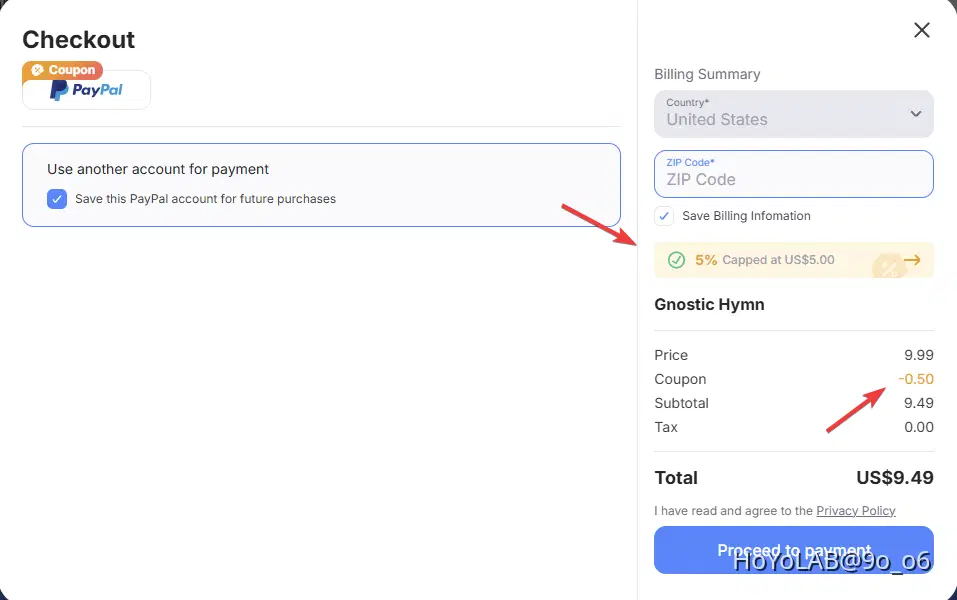
- Proceed with the transaction. You’ll be directed to a secure payment provider page.
- Follow the prompts (enter card info, confirm PayPal login, etc.).
- After payment is completed, you should see a confirmation screen.
- Items (like Genesis Crystals) are credited to your account instantly.

Match Your Server & UID
If you buy for the wrong server or wrong UID, those items won’t appear on your actual game account. Double-check before purchase. (HoYoverse Help Center)
🚫 Common Errors
If payment fails, common causes include:
- Insufficient funds
- Bank or payment provider blocking the charge
- Network interruptions
- Regional payment restrictions
- In that case, try another payment method or consult your bank. (HoYoverse Help Center)
If Something Goes Wrong
If your purchase doesn’t go through or items don’t arrive, HoYoverse recommends contacting Customer Support with details such as:
- Your UID & server
- Order ID or receipt
- Payment method screenshots
- Platform used for purchase. (HoYoverse Help Center)
You can submit issues through the in-game Feedback system under Paimon Menu → Feedback. (HoYoverse Help Center)