Manipulating Character Movement in Miliastra Wonderland

Who is this guide for?
If you want to understand the limitations of moving characters in Miliastra Wonderland, and how certain things work in more detailed fashion. The findings are the results of my extensive testing to test the limits of what you can do to move a character.
Luna VII Changes(?)
So I'm not sure if this was first changed in Luna VII. But I'm writing this as of Luna VII. As of Luna VII, the Ejector can affect the player from the ground and push the character up. (So the graph on Character Disruptor Device devices differences is slightly outdated and incorrect) Same thing with Traction Device, it can also send characters upward, even if they are on the ground. (I kind of think they already could before, but as of now, it definitely can)
Luna VI Changes
As the guide was written in Luna IV, some things may be incorrect. For example after quick testing, Force Fields now have a speed limit of 150m/s instead of 15m/s. Not sure if I have time to test to see what's changed, but it should mostly just be speed limits being increased.
Terminal velocity of falling is now also 150m/s or so.
Speed numbers and measuring
The following numbers are based on my own testing as of Luna IV.
A character's speed under gravity reaches a terminal velocity of 30m/s
Default run speed is 5.32m/s
Walk speed is 1.2m/s
Sprint speed is 6.8m/s
Fun fact: The jumping animation(when going back down) applies a downward force that requires roughly 14m/s of upward force to negate. This is separate from gravity.

How to measure movement speed
You can measure the speed of the character by applying a Monitor Movement Rate status effect (make sure to give it infinite duration), and utilizing the "When Character Movement SPD Meets Condition" server-side node.
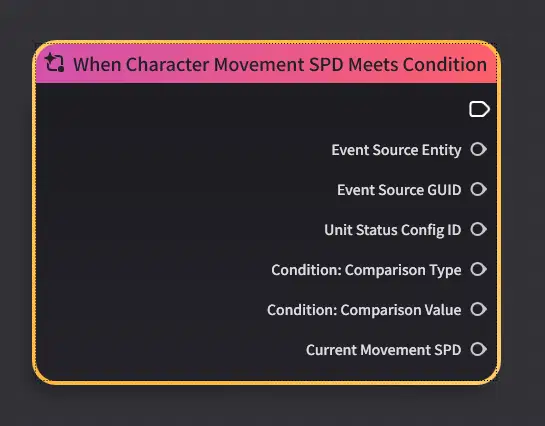
Print out the "Current Movement SPD" to figure out the speed in the Logs
Class Configs
Within each class pertaining a player, you can enable or disable the following
- Allow Jump
- Allow Sprint
- Allow Climb
- Allow Glide

Within the combat preset
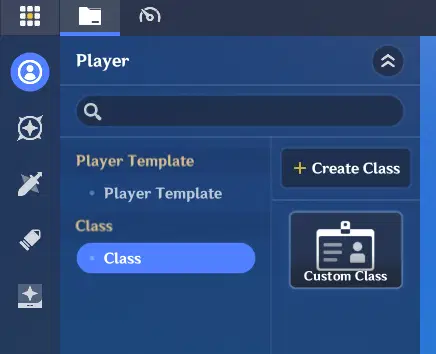
Go to the class module
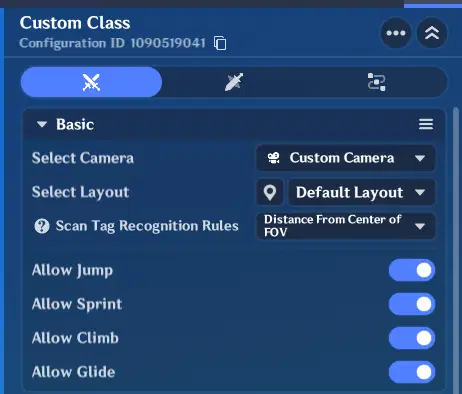
The toggle settings can be found here
Character Statuses
Character statuses are another way to manipulate character movement
Where to find unit status
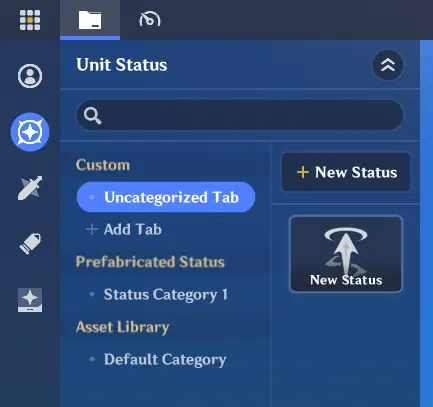
Within combat preset, switch to Unit Status Module
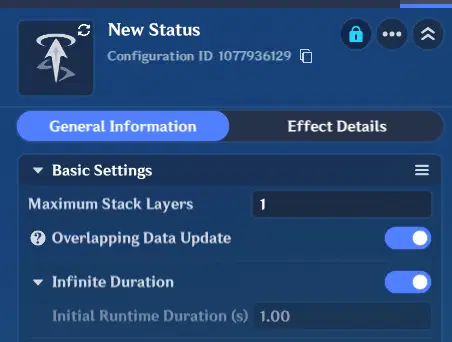
You can set the duration of the unit status
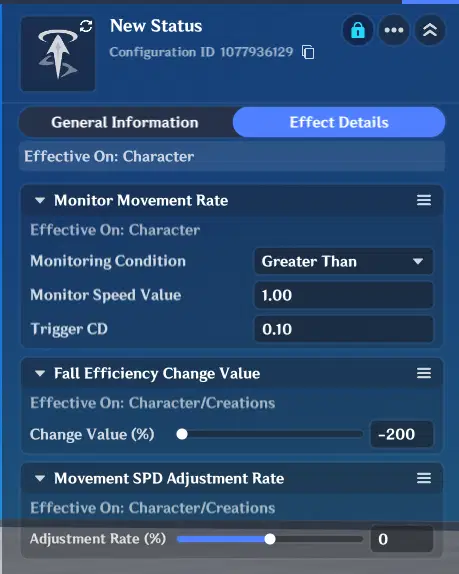
And add various effects to it
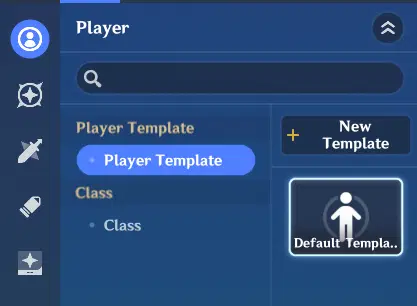
One way to apply status to a player is by going to the player template
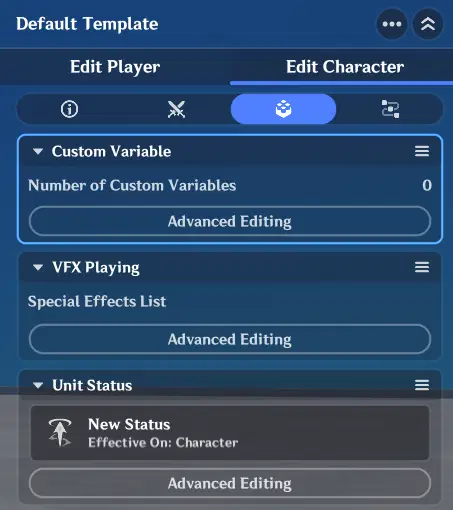
Going to edit character, and unit status, advanced editing

At the bottom, you can add a Unit Status Effect to the character
Statuses that pertain to Character Movement
Within character status, the effects that would affect a character's movement includes
- Movement SPD Adjustment
- Under Base Attributes
- (-0.4 to 0.4)
- Stamina Consumption Adjustment Rate
- Under Base Attributes
- Stamina Recovery Adjustment Rate
- Under Base Attributes
- Knockback Efficiency Adjustment Rate
- Under Base Attributes
- Super Jump
- Under Special Functions
- Jump Disabled
- Under Special Functions
- Sprint Disabled
- Under Special Functions
- Disable Gliding
- Under Special Functions
- Disable Climbing
- Under Special Functions
- Monitor Movement Rate
- Under Special Functions
- Fall Efficiency Change Value
- Under Base Attributes
- (-200% to 9900%)
- At -200% this does make it so gravity applies no acceleration, thus can make a character float. However important to note that jumping by itself applies a downward force, so even at -200% the character will fall gradually if they jump. See the gif for example
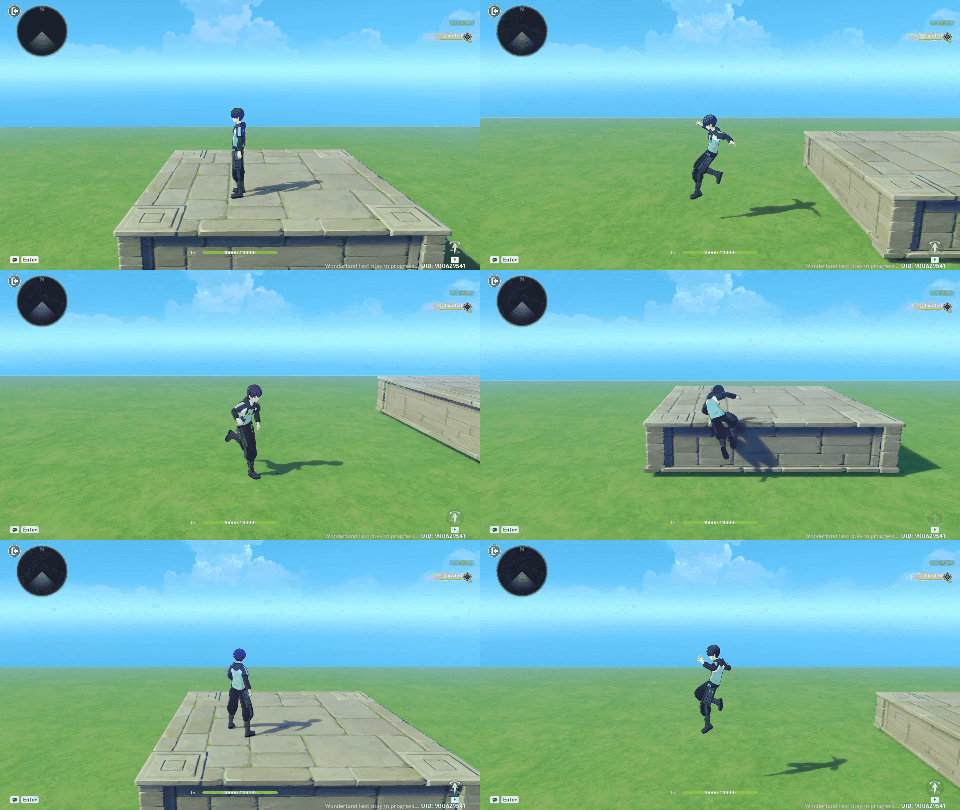
Example of how you can still jump at -200% Fall Efficiency due to jump's downward force.
Restricting Player Movement
With manipulating character's movement, one key thing a designer might want to do, is to fully restrict a player's location. We can do that by simply putting up walls around the player. Additionally making those walls invisible by toggling Model Visibility is something you might want to do.
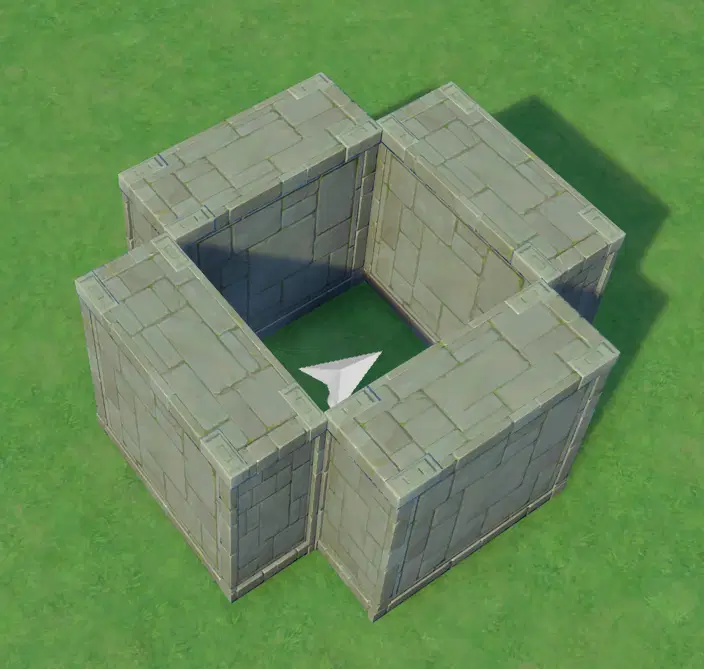
4 Walls around the player spawn
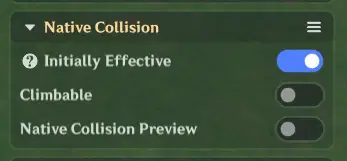
Make sure to turn off climbable
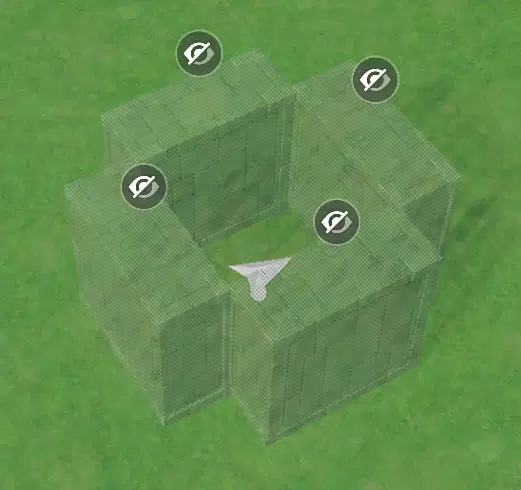
You can turn the model visibility off
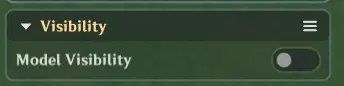
The model visibility option
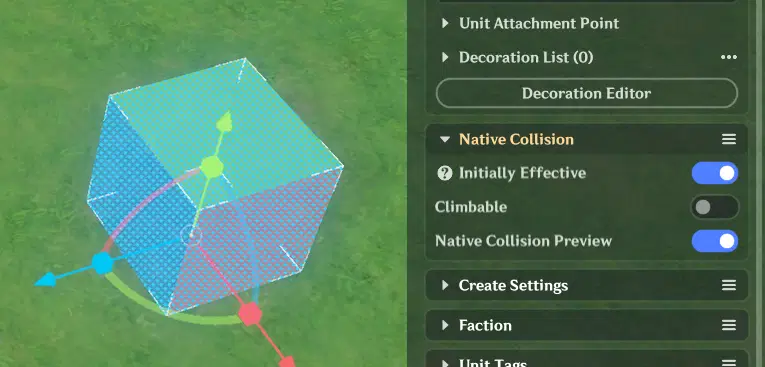
Alternatively you can use an empty model entity, they actually have native collision
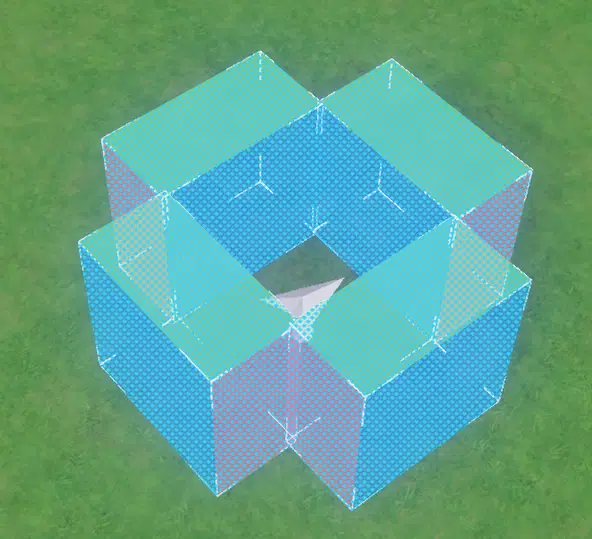
4 Walls with empty models
So 4 walls would restrict a player's location depending on how close they are to the player.
But you can also change how the walls are laid out, for example if you want to do a sidescroller, you can put two of the walls for the very ends of the sidescroller.
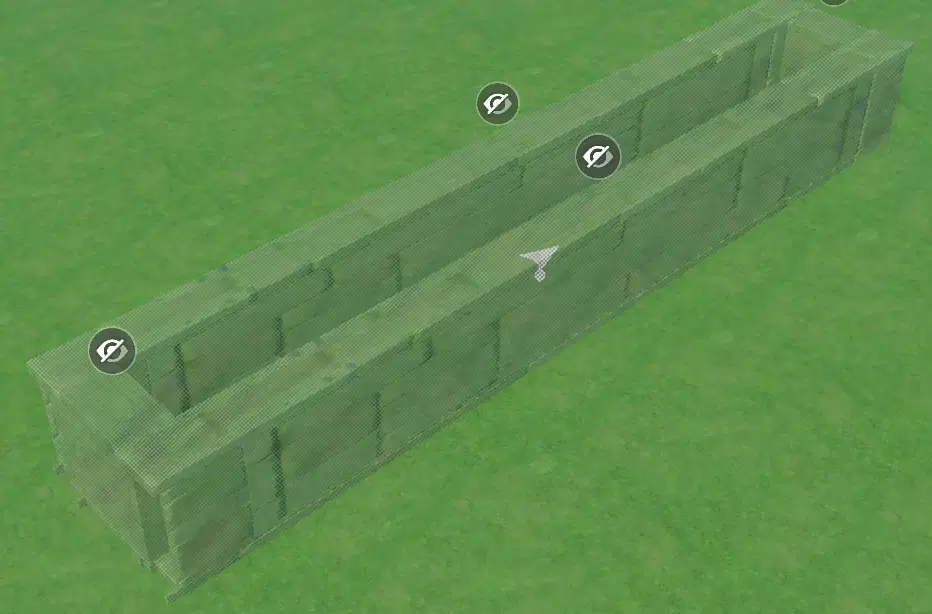
Imagine this, but longer for your sidescroller game.
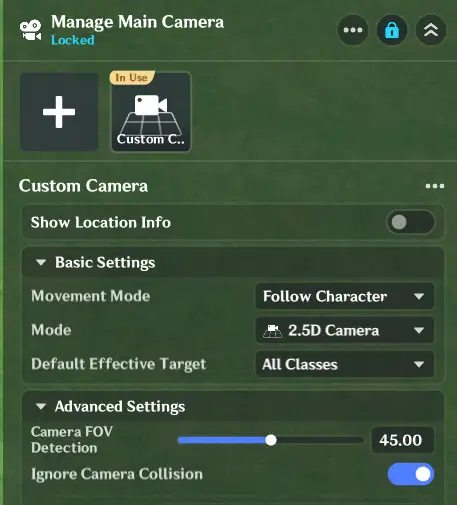
Only 2.5D Camera has an option to ignore camera collision. Keep that in mind.
Character Disruptor Device
The next topic is the Character Disruptor Device components, there are 3 types, Ejector, Traction Device and Force Field Device. They are all quite similar but different.
How to add Character Disruptor Device Component
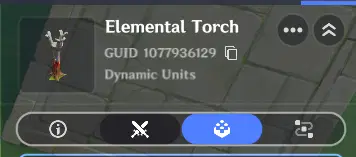
Character Disruptor devices can be added within the component tabs of an entity

At the bottom
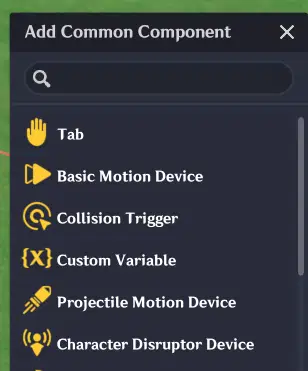
Find Character Disurptor Device under the list of components
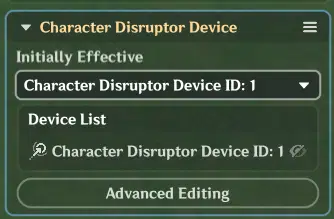
Click 'Advanced Editing' to further customize
Similarities
Let's first take a look at the similarities
They all can have local filters, allowing you to specify what gets affected.
They all have a toggle to have the component be enabled or disabled when created.
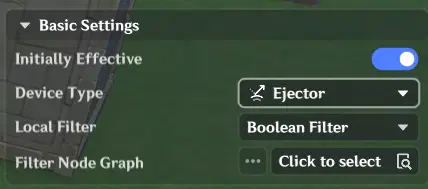
Local filters, and Initially Effective settings
They all have some sort of trigger area.
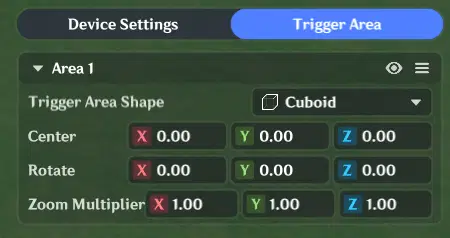
Trigger Area settings
When they have motion velocity value, they also have a stable phase duration which indicates how long the force will be in that specified motion velocity. (Only Ejectors and Traction Device have this)
And a decay phase duration, is how long afterwards for the force to go to 0.
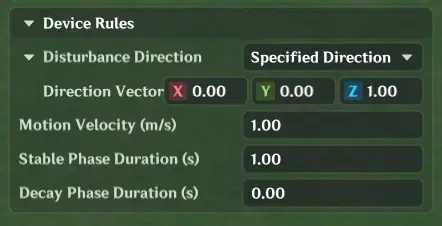
Velocity and duration settings for an ejector
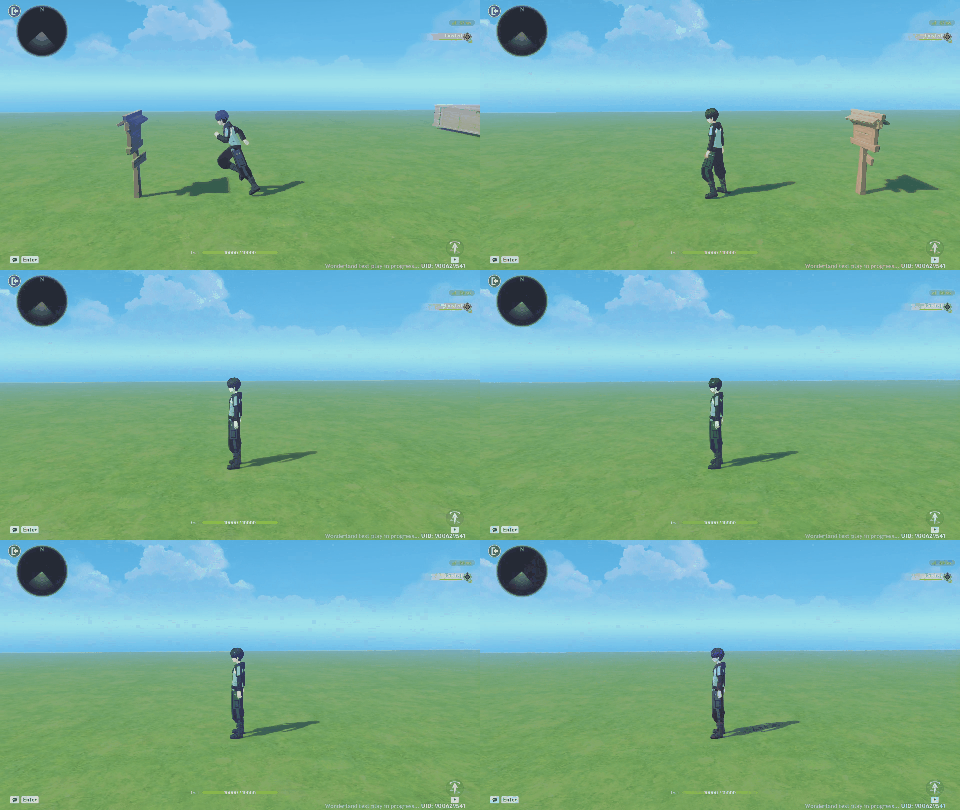
Ejector with a stable phase of 2 seconds, and a decay phase of 2 seconds.
For Ejectors and Force Fields, they need to be specified a direction. This can be either a constant fixed direction OR a direction relative to the character being influenced. Such as towards the character from the entity, or towards the entity from the character.
This relative direction is useful if you want to have more dynamic influence over where to move the character. For example if you position the character disruptor device behind the player, it can push them forward, then you can simply move the entity with the character disruptor device to be in front of the player to push them backwards.
Differences
For the notable differences, see the following table.
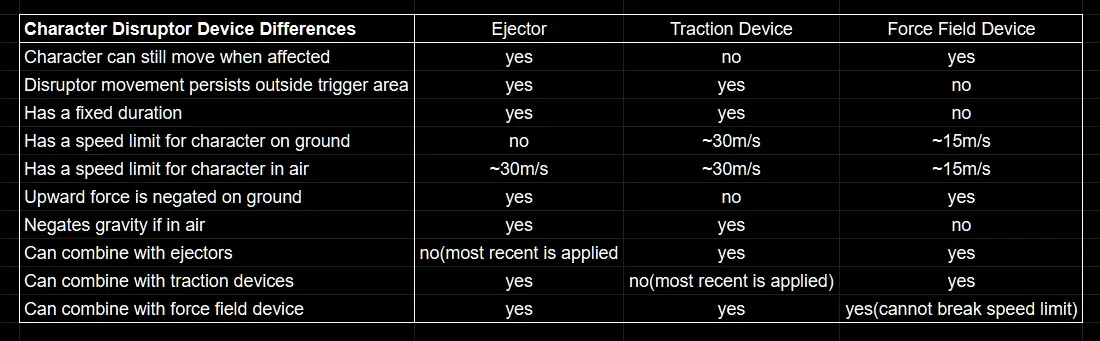
This is based on my own extensive testing as of version Luna IV
Couple of key points regarding Traction Device that is unique to it.
Traction device has settings that
- allows the force to stop when a destination target is reached
- allow the character to end the force by jumping
- allow the character to ignore scene collision (note: scene collision is not object collision)
- also that traction device turns the player model off and gives you a lightning ball appearance.
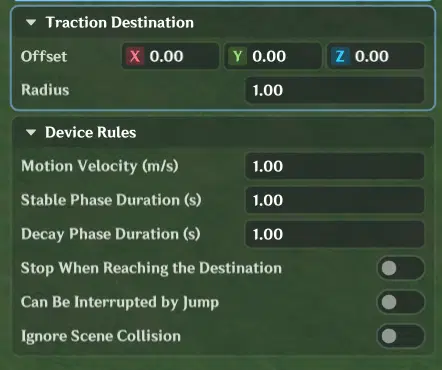
Traction Device Settings
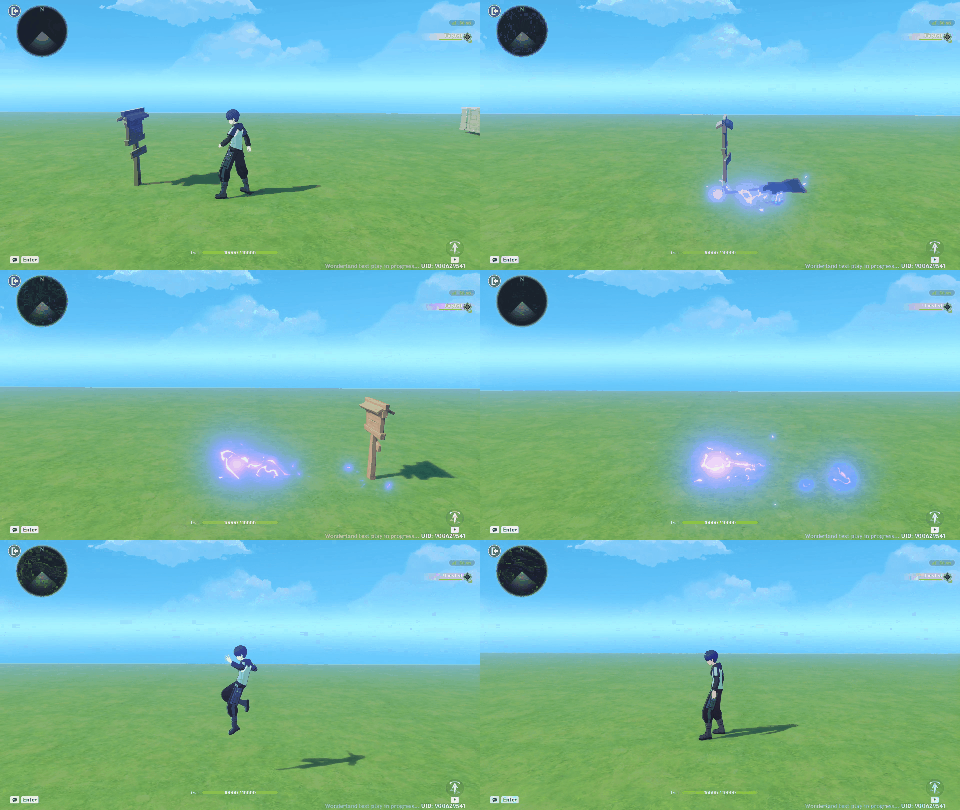
The lightning ball appearance when influenced by traction device.
Special fact about upward force and gliding
Another thing to mention is that when the character is gliding and influenced by any force by Character Disruptor devices, gravity is negated.
The official documentation states that [For the upward force of the force field device to take effect, the character must be in a flying state.] and that [Characters cannot jump in place and take off while in the force field device]
Based on my own testing having a force field with an upward force still seems to affect a player when jumping(they do jump higher).
However due to the fact that the jumping animation itself applies a downward force you cannot just fly.
Keep in mind that force field devices do not negate gravity (unless the player is gliding), so when the player jumps, even with the upwards force of a field field, two things happen.
Jumping animation will apply a downward force and gravity will occur.
If you disable gravity by adding in a unit status effect of -200% Fall Efficiency, it will take around 14m/s of upwards force for you to negate the downward force of the jumping animation.
Teleport Player
Another way for character movement is using the Server-side node. Teleport player.
This takes in a player entity, a target location and target rotation.
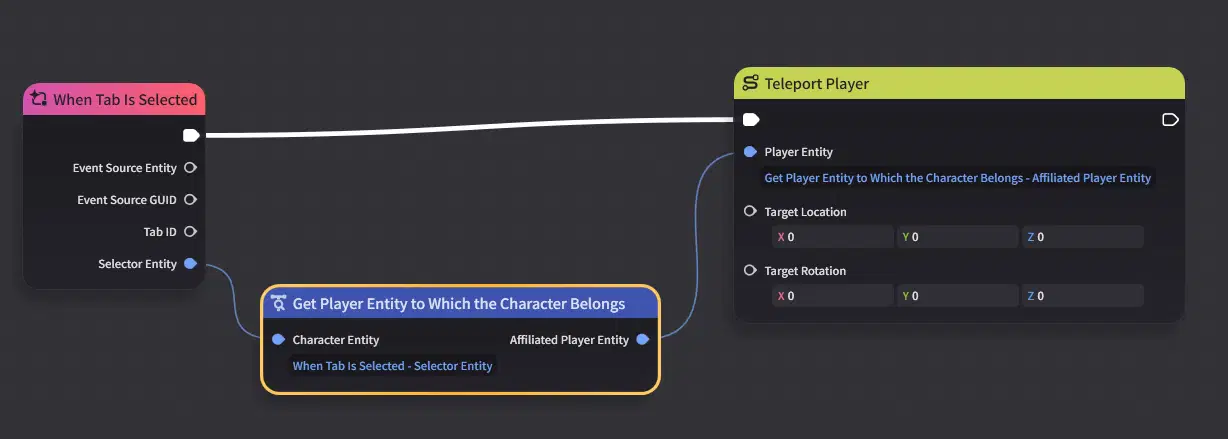
This teleports the player to coordinates 0,0,0 when tab is selected
Based on testing, if the target location is 60 units away or more, there will be a loading screen.
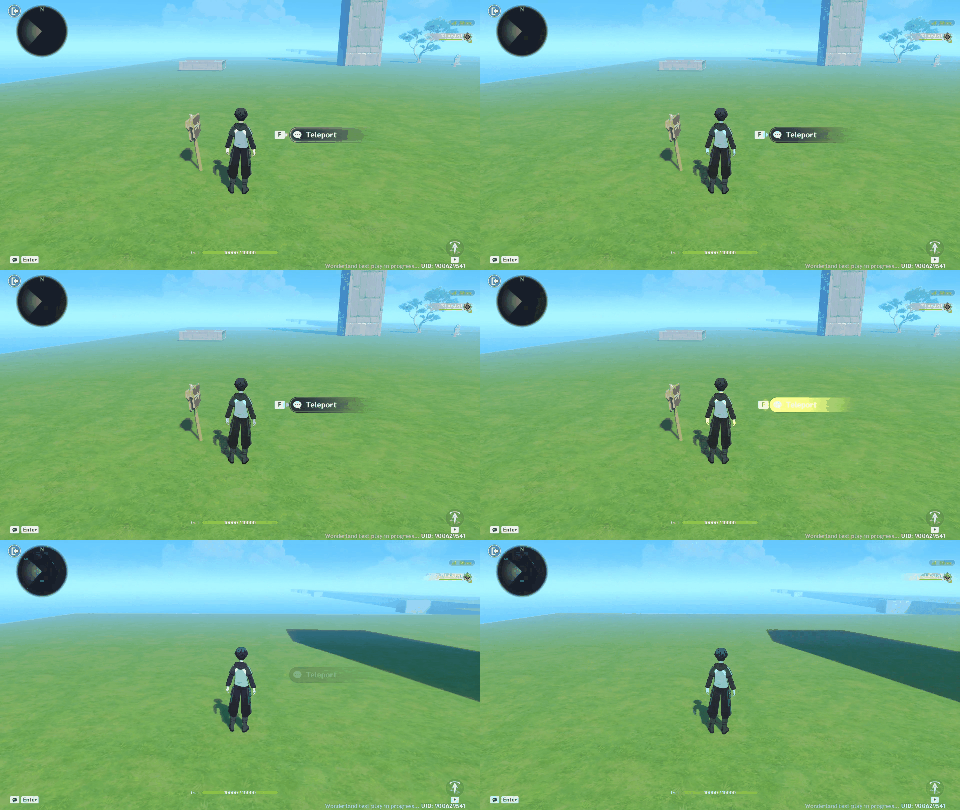
Teleporting around 50m
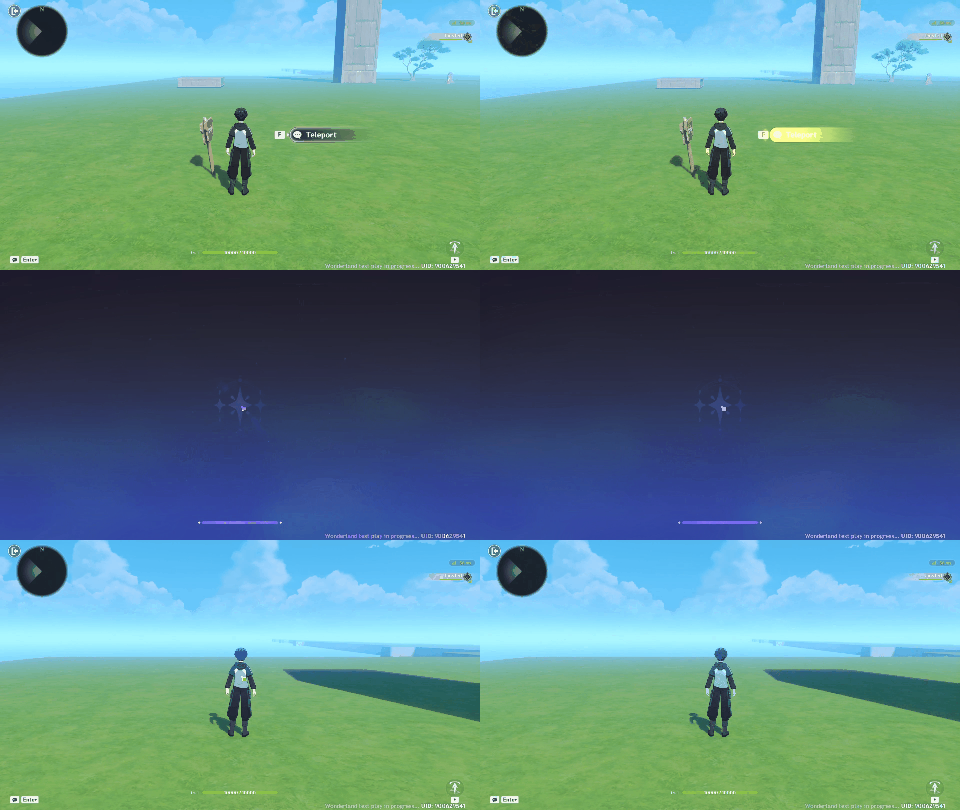
Teleporting 60m+ results in a loading screen
Note: The player will start falling if you teleport them to somewhere mid-air, regardless if the loading screen occurs or not.
Meaning that if you teleport a player really high and a loading screen occurs, by the time the loading screen is over, they may already be on the ground.
Fixed-Point Displacement
Finally the last way the guide will address in character movement is using the "Fixed-Point Displacement" client-side node.
Being a client-side node, that means you can only use it when say casting a skill.
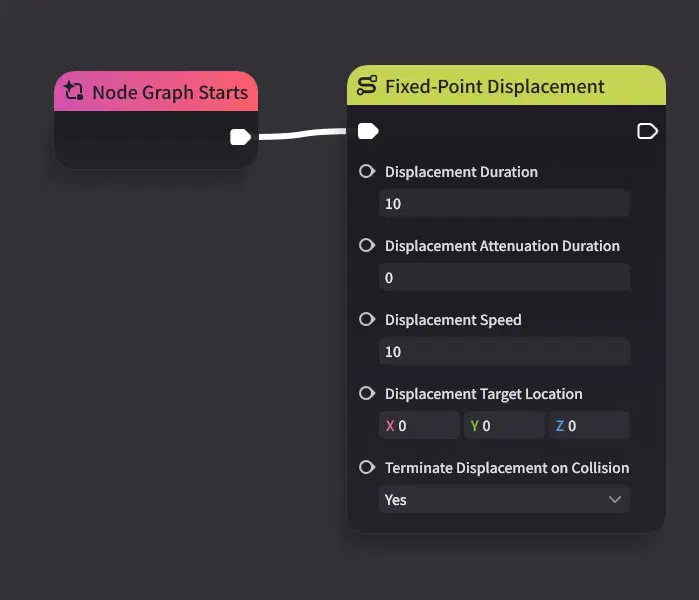
This moves the player towards world location 0,0,0 for 10 seconds at a velocity of 10m/s
It takes in similar parameters as Ejectors.
- Displacement duration (how long it'll last)
- Displacement attenuation duration (how long after it'll take to get to 0 velocity)
- Displacement speed (the velocity)
- Displacement target location (where it'll move the character towards)
- Terminate Displacement On Collision (a boolean value, to determine if the movement stops on collision)
Now the behavior is the more important parts to note, after some testing this is what I found.
- Gravity is ignored during displacement
- Moves the player up or down regardless if they are in air or on ground. (unlike ejectors or force fields, which require the player to be in the air for upward force to be applied)
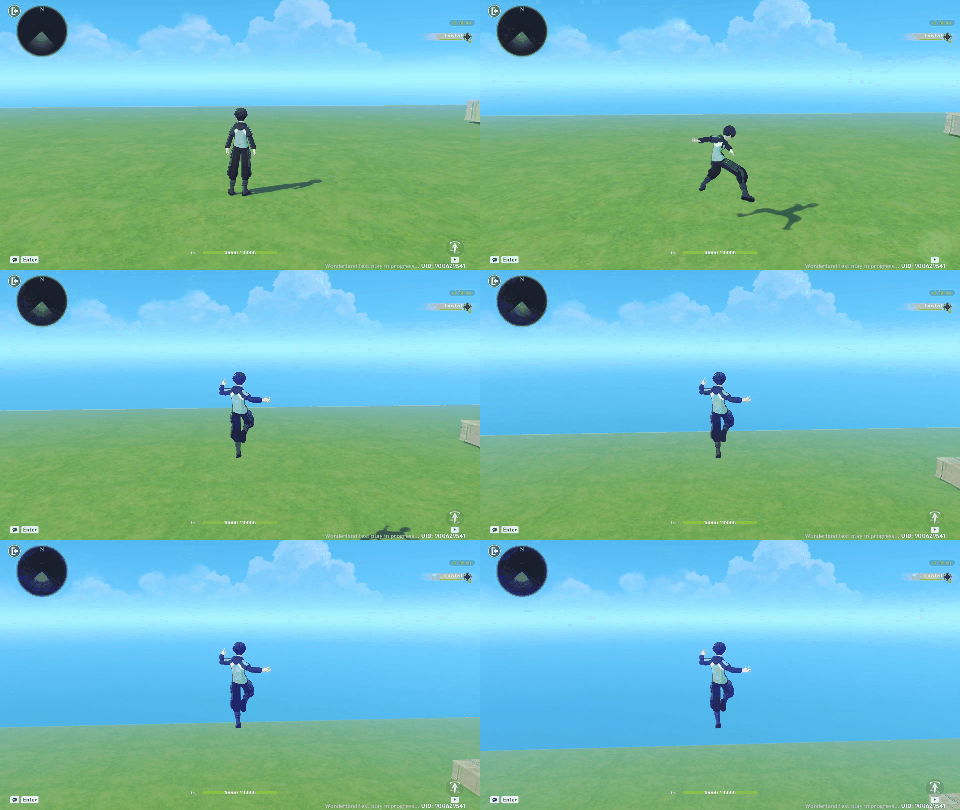
Fixed-Point Displacement can move players up regardless
- Does not phase the player through obstacles
- Has a speed limit of 30m/s regardless of on air or on ground
- Does not go pass the target destination, if the duration is not over, it'll just bounce back and forth the target location (if terminate displacement on collision is set to false)
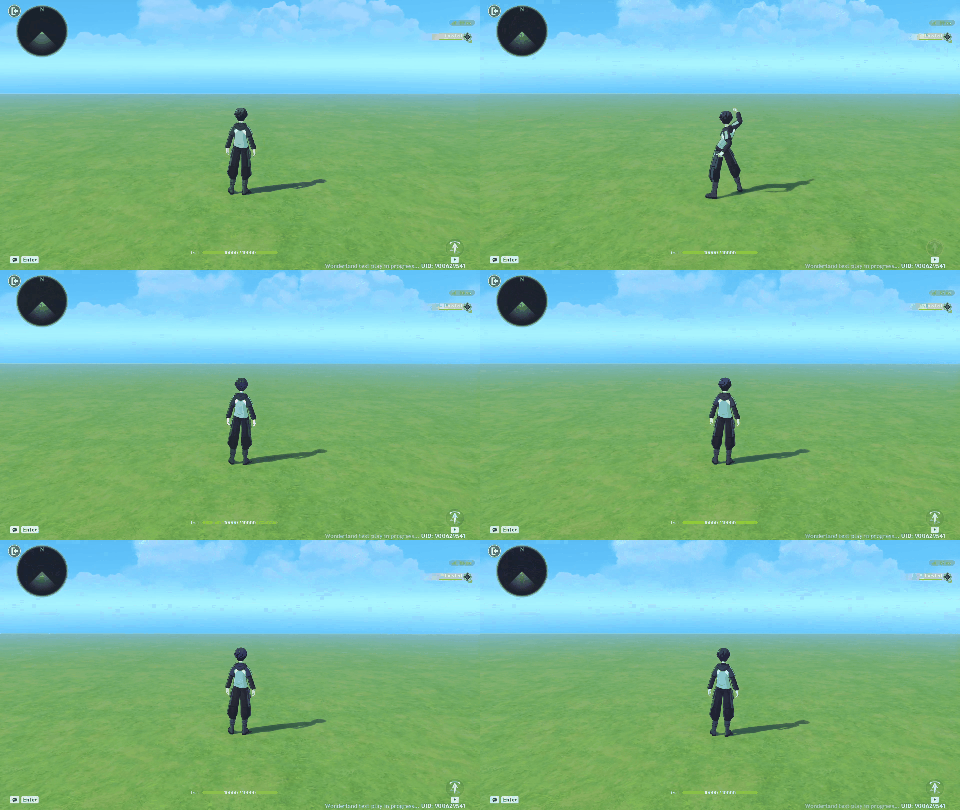
Once it reaches the destination the character may bounce/jitter back and forth
- Character can still move when being displaced
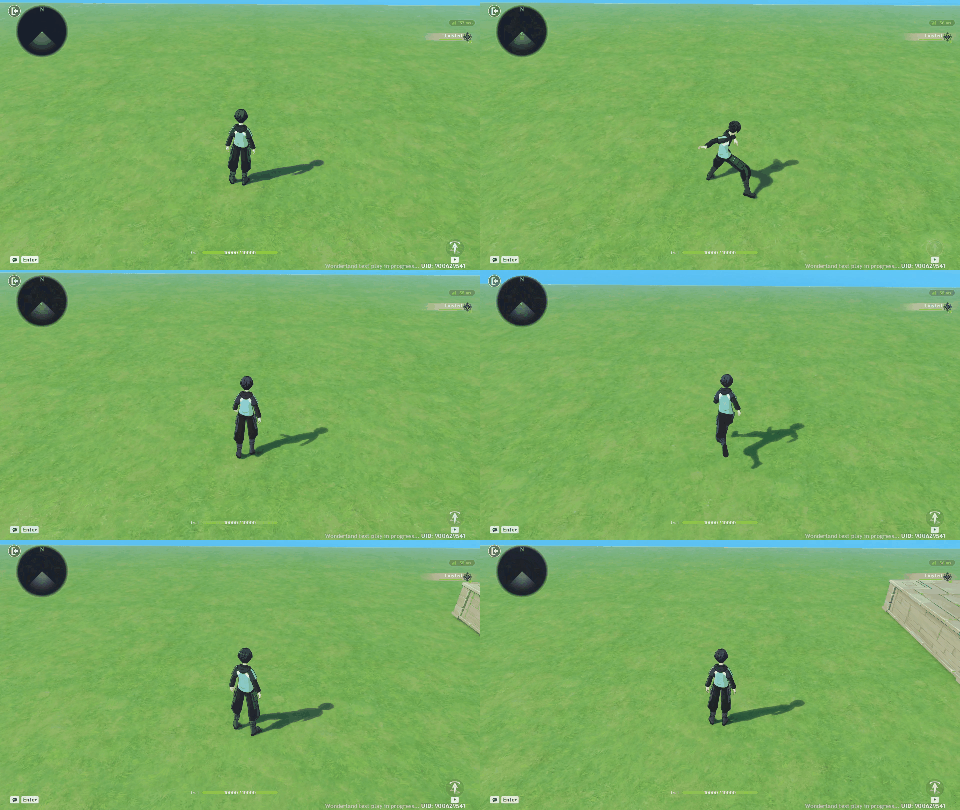
Character can still move when being displaced
- if you are influenced by a traction device while being displaced by "fixed-point displacement", the displacement is canceled and only the traction device takes place
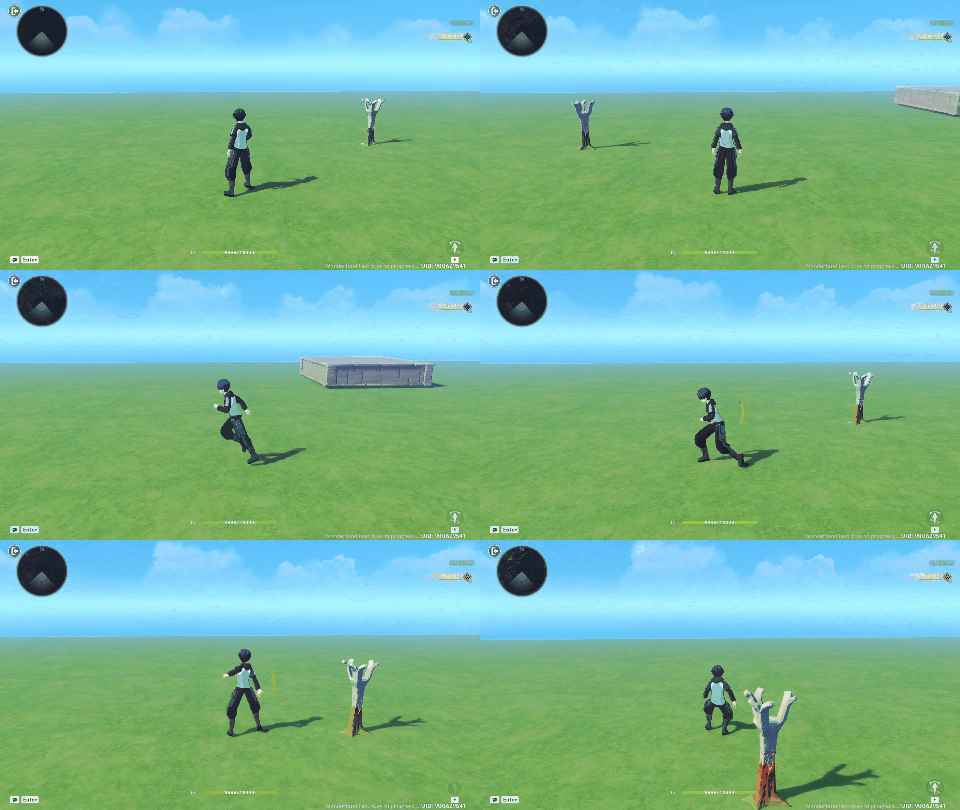
Example of traction device interrupting displacement
Afterword
There's a lot of little details about how movement works with Miliastra Wonderland, be it how it functions, or just the speed values. I hope the guide helps you in designing your game's movement, and saves you from the headaches of trial and error that I went through in figuring things out.